
Documentation Index

Fetch the complete documentation index at: https://winglessenterprises.mintlify.app/llms.txt

Use this file to discover all available pages before exploring further.

The Settings tab is where you manage your preferences and account.

Appearance

Dark Mode

Toggle dark mode on or off with the Dark Mode switch. Your preference is saved to your account and automatically applied whenever you sign in, on any device.

Weight Unit

Choose between lbs and kg using the Weight Unit toggle. This controls how weights are displayed and entered throughout the app — in your inventory items, trip weight caps, and the Pack view indicators. Your preference is saved to your account and syncs across devices. See Weight Tracking for more on how weights work.
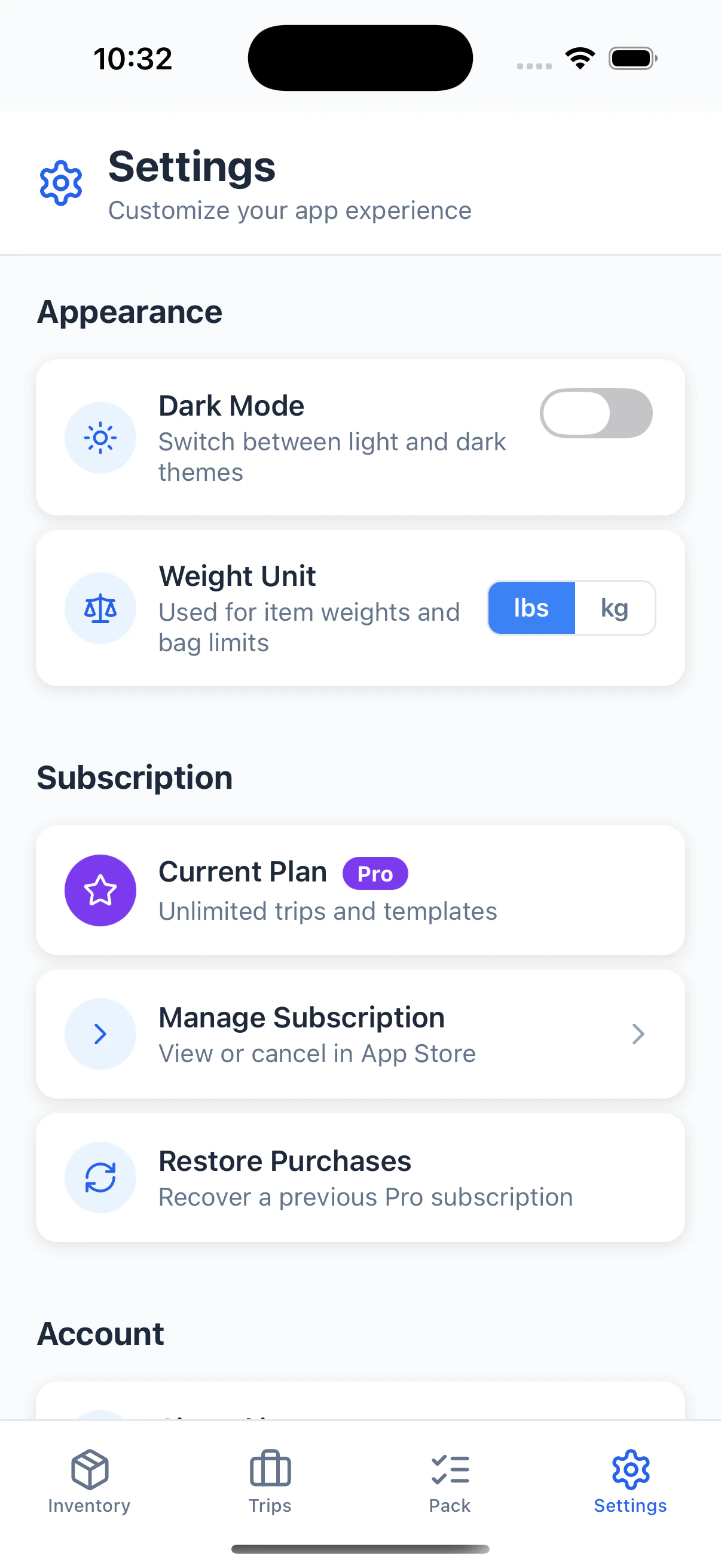
The Settings tab in light mode, showing the Dark Mode toggle and the Weight Unit lbs/kg selector in the Appearance section, followed by a Subscription section.
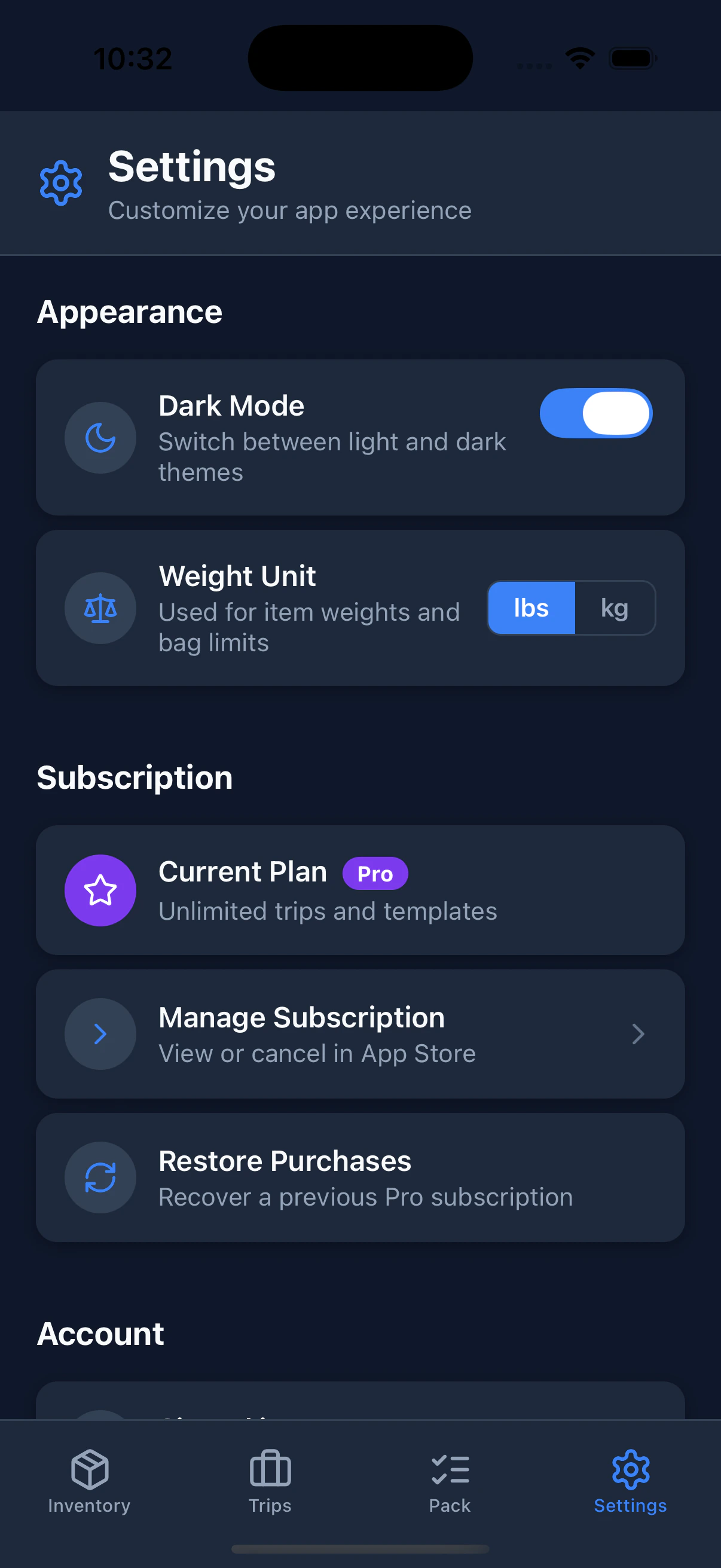
The Settings tab in dark mode, showing the same Appearance and Subscription sections with a dark background.

Subscription

The Subscription section shows your current plan and lets you manage it.
RowWhat it does
Current PlanShows your plan status with a color-coded badge
Manage SubscriptionOpens the App Store to upgrade, downgrade, or cancel
Restore PurchasesRe-activates a Pro subscription you already paid for (useful after reinstalling or switching devices)
Pro features include weight tracking, unlimited trips, templates, trip sharing, and PDF export.

Subscription States

The Current Plan row changes based on your subscription status:
BadgeWhat it meansWhat to do
FreeNo active subscription — limited to 3 trips and 2 templatesTap Upgrade to Pro to unlock everything
TrialYou’re in a free trial period — shows days remainingTap Manage Subscription to convert to a paid plan before it ends
ProActive paid subscriptionTap Manage Subscription to view, downgrade, or cancel
CancelledYou cancelled, but Pro access continues until the end of the billing periodTap Resubscribe to Pro if you change your mind
ExpiredYour subscription ended and Pro features are no longer activeTap Resubscribe to Pro to regain access
Pro (with payment warning)Payment failed — Apple is retrying the charge and your access is temporarily maintainedTap Fix Payment Method to update your card in the App Store

Account Information

Your account details are shown in the Settings tab:
  • Email address: The email you used to register
These are read-only. To change your email address, contact support.

Changing Your Password

If you signed up with email and password:
  1. On the login screen, tap Forgot password.
  2. Enter your email address and tap Send Code.
  3. Check your inbox for an email from noreply@packkit.me containing a 6-digit code.
  4. Enter the code in the app on the “Check Your Email” screen.
  5. On the “Set New Password” screen, enter your new password (must be different from your current one) and confirm it.
  6. Tap Save. You’ll be signed in automatically.
If you signed up with Apple or Google, your password is managed by that provider. Visit their account settings to make changes.

Signing Out

  1. Open the Settings tab.
  2. Tap Sign Out.
  3. Confirm.
You’ll be returned to the sign-in screen. Your data is safely stored in the cloud. Sign in again any time to access it.

Data & Privacy

PackKit stores your inventory, trips, and settings in a secure cloud database. Your data is:
  • Only accessible to your account
  • Not shared with third parties
  • Retained as long as your account is active
For full details, see our Privacy Policy.

App Version

Your current app version and build number are shown at the bottom of the Settings tab. Include both when contacting support.

Getting Help

Having a problem or have a suggestion? Reach out at support@packkit.me and include your app version and a description of what happened.