> ## Documentation Index
> Fetch the complete documentation index at: https://winglessenterprises.mintlify.site/llms.txt
> Use this file to discover all available pages before exploring further.
# Weight Tracking
> Track your gear weight and stay under airline limits with per-bag weight indicators.
PackKit Pro lets you track the weight of your gear so you never get hit with an overweight baggage fee.
***
## Setting Your Weight Unit
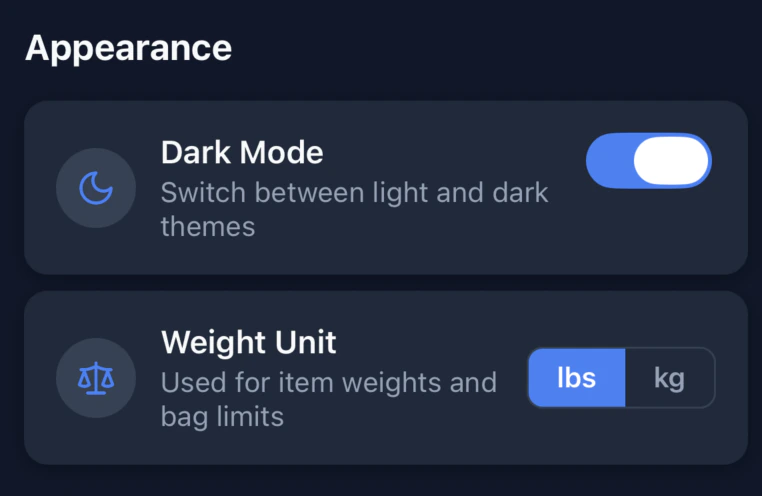
Go to **Settings → Weight Unit** to choose between **lbs** and **kg**. This preference is saved to your account and syncs across all your devices.
 ***
## Adding Weight to Inventory Items
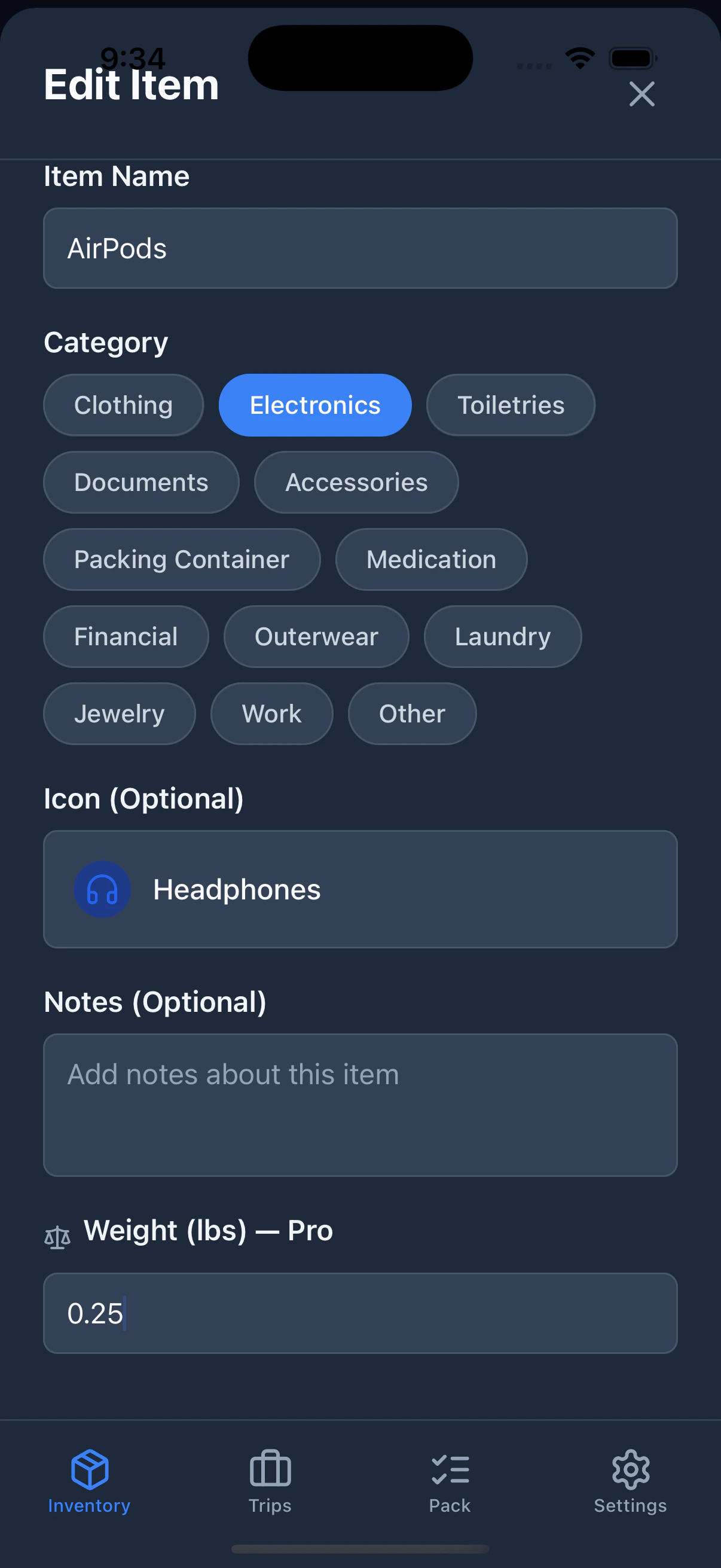
Every item in your inventory can have an optional weight. Weights are entered in the unit you select in Settings.
To add or edit an item's weight:
1. Open the **Inventory** tab.
2. Tap the edit (pencil) icon on any item.
3. Enter a value in the **Weight** field. Decimal values are supported (e.g., `1.5` lbs or `0.7` kg).
4. Tap **Save**.
***
## Adding Weight to Inventory Items
Every item in your inventory can have an optional weight. Weights are entered in the unit you select in Settings.
To add or edit an item's weight:
1. Open the **Inventory** tab.
2. Tap the edit (pencil) icon on any item.
3. Enter a value in the **Weight** field. Decimal values are supported (e.g., `1.5` lbs or `0.7` kg).
4. Tap **Save**.
 Weight tracking requires a PackKit Pro subscription. Tapping the weight field will show the upgrade screen if you aren't subscribed.
***
## Setting Weight Limits Per Trip
Each trip can have two independent weight caps — one for your checked bag and one for your carry-on. Airlines enforce different limits for each, and PackKit tracks them separately.
**Common limits for illustration only — always confirm with your carrier:**
| Carrier | Checked bag | Carry-on |
| --------------------------- | ------------- | -------------------- |
| Delta / United / American | 50 lb (23 kg) | Not enforced at gate |
| Southwest | 50 lb (23 kg) | Not enforced at gate |
| Most international carriers | 50 lb (23 kg) | 15–22 lb (7–10 kg) |
Weight limits vary by airline, fare class, route, and frequent flyer status. The values above are examples only. Always check your carrier's current policy before you fly.
To set weight limits on a trip:
1. Open the **Trips** tab.
2. Create a new trip or tap the edit icon on an existing one.
3. Scroll to the **Weight Limits** section.
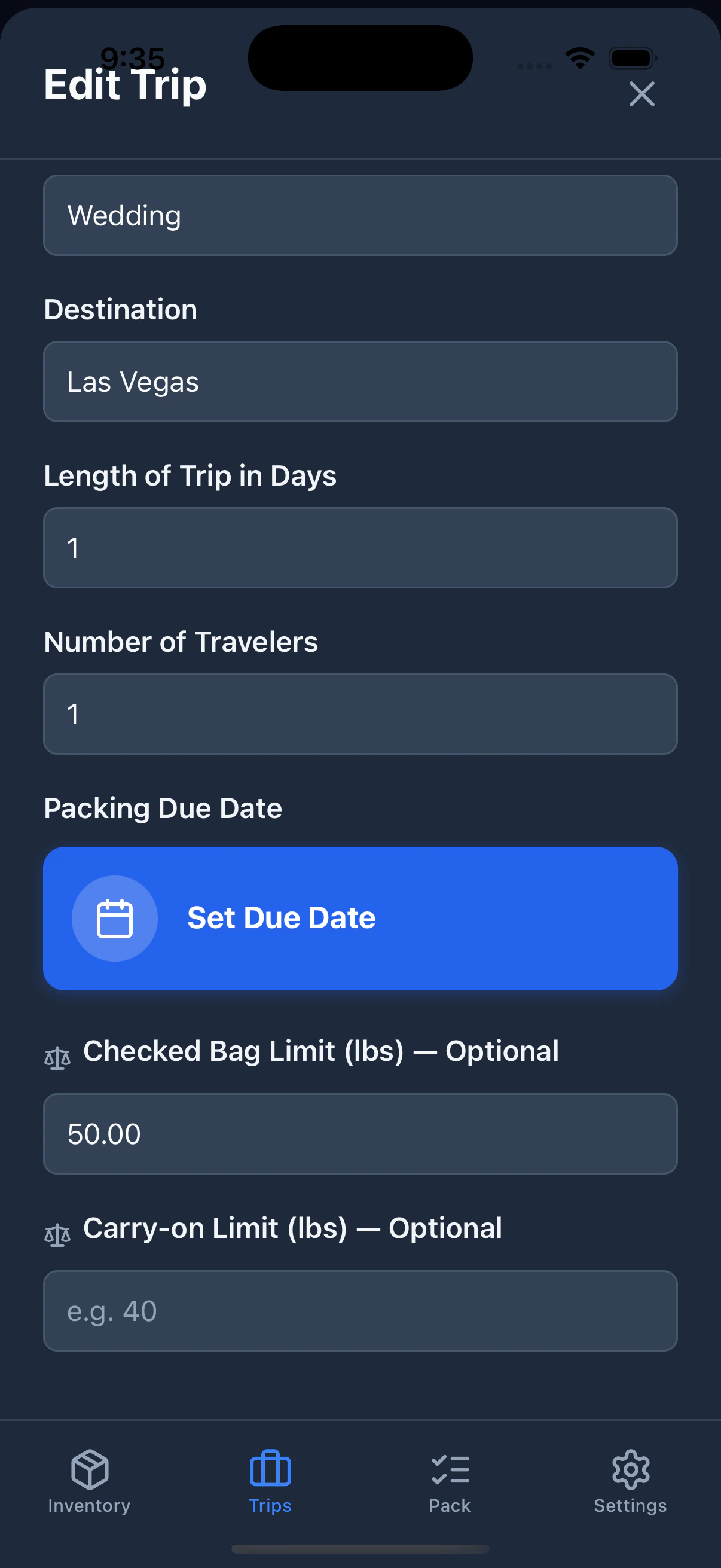
4. Enter a value for **Checked Bag Cap** and/or **Carry-on Cap**.
5. Save the trip.
Once set, the caps appear on the trip card so you can see them at a glance.
Weight tracking requires a PackKit Pro subscription. Tapping the weight field will show the upgrade screen if you aren't subscribed.
***
## Setting Weight Limits Per Trip
Each trip can have two independent weight caps — one for your checked bag and one for your carry-on. Airlines enforce different limits for each, and PackKit tracks them separately.
**Common limits for illustration only — always confirm with your carrier:**
| Carrier | Checked bag | Carry-on |
| --------------------------- | ------------- | -------------------- |
| Delta / United / American | 50 lb (23 kg) | Not enforced at gate |
| Southwest | 50 lb (23 kg) | Not enforced at gate |
| Most international carriers | 50 lb (23 kg) | 15–22 lb (7–10 kg) |
Weight limits vary by airline, fare class, route, and frequent flyer status. The values above are examples only. Always check your carrier's current policy before you fly.
To set weight limits on a trip:
1. Open the **Trips** tab.
2. Create a new trip or tap the edit icon on an existing one.
3. Scroll to the **Weight Limits** section.
4. Enter a value for **Checked Bag Cap** and/or **Carry-on Cap**.
5. Save the trip.
Once set, the caps appear on the trip card so you can see them at a glance.
 Weight limits require a PackKit Pro subscription.
***
## Weight Indicators in the Pack View
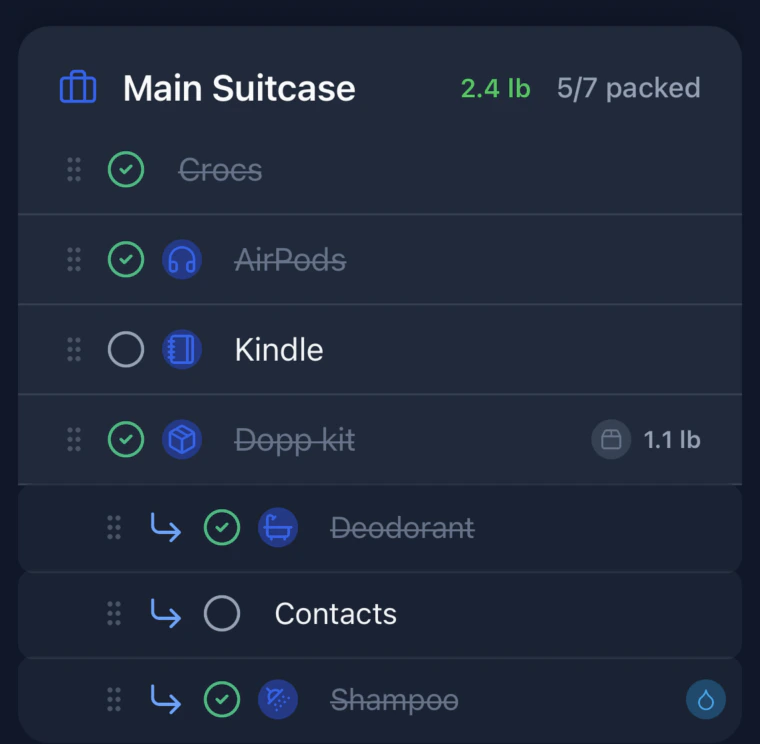
When you're actively packing (the **Pack** tab), each bag header shows its total weight — the combined weight of every item inside it, including the bag itself and any nested containers, if their weights have been entered in your inventory.
### Color coding
The weight label changes color based on how close you are to the applicable cap:
| Color | Meaning |
| ---------- | ---------------------------- |
| **Green** | Below 80% of cap |
| **Yellow** | 80–90% of cap |
| **Orange** | 90–99% of cap |
| **Red** | At or over 100% — overweight |
If no cap is set for that bag type, the weight is shown in gray.
Weight limits require a PackKit Pro subscription.
***
## Weight Indicators in the Pack View
When you're actively packing (the **Pack** tab), each bag header shows its total weight — the combined weight of every item inside it, including the bag itself and any nested containers, if their weights have been entered in your inventory.
### Color coding
The weight label changes color based on how close you are to the applicable cap:
| Color | Meaning |
| ---------- | ---------------------------- |
| **Green** | Below 80% of cap |
| **Yellow** | 80–90% of cap |
| **Orange** | 90–99% of cap |
| **Red** | At or over 100% — overweight |
If no cap is set for that bag type, the weight is shown in gray.



 ### Nested containers
If you pack a container inside another container (e.g., a toiletry bag inside a suitcase), the inner container also shows its own total weight inline. That weight is included in the parent bag's total and uses the same color thresholds.
### Nested containers
If you pack a container inside another container (e.g., a toiletry bag inside a suitcase), the inner container also shows its own total weight inline. That weight is included in the parent bag's total and uses the same color thresholds.
 ***
## Checked vs. Carry-on Bags
PackKit applies the appropriate weight cap based on whether a bag is checked or carry-on. All bags start as **carry-on** by default.
To change a bag's type, **swipe left** on any bag header to reveal the toggle action:
* If the bag is currently carry-on, the action shows **"Checked"** in blue.
* If the bag is currently checked, the action shows **"Carry-on"** in teal.
Tap the action to switch. The change is saved immediately.
***
## Checked vs. Carry-on Bags
PackKit applies the appropriate weight cap based on whether a bag is checked or carry-on. All bags start as **carry-on** by default.
To change a bag's type, **swipe left** on any bag header to reveal the toggle action:
* If the bag is currently carry-on, the action shows **"Checked"** in blue.
* If the bag is currently checked, the action shows **"Carry-on"** in teal.
Tap the action to switch. The change is saved immediately.
 ***
## Moving a Bag
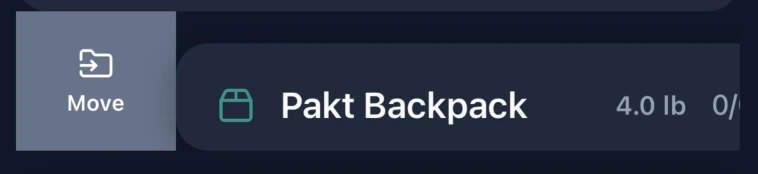
To move a bag to a different container, **swipe right** on any bag header to reveal the **Move** action. Tap it to open the container picker.
***
## Moving a Bag
To move a bag to a different container, **swipe right** on any bag header to reveal the **Move** action. Tap it to open the container picker.