> ## Documentation Index
> Fetch the complete documentation index at: https://winglessenterprises.mintlify.site/llms.txt
> Use this file to discover all available pages before exploring further.
# Trips & Templates
> Create trips, build packing lists, and save templates to reuse your best lists.
Trips are the heart of PackKit. Each trip gets its own packing list: items from your inventory, organized into containers and tracked with a checklist.
***
## Creating a Trip
1. Open the **Trips** tab.
2. Tap the **+** button (or **New Trip**).
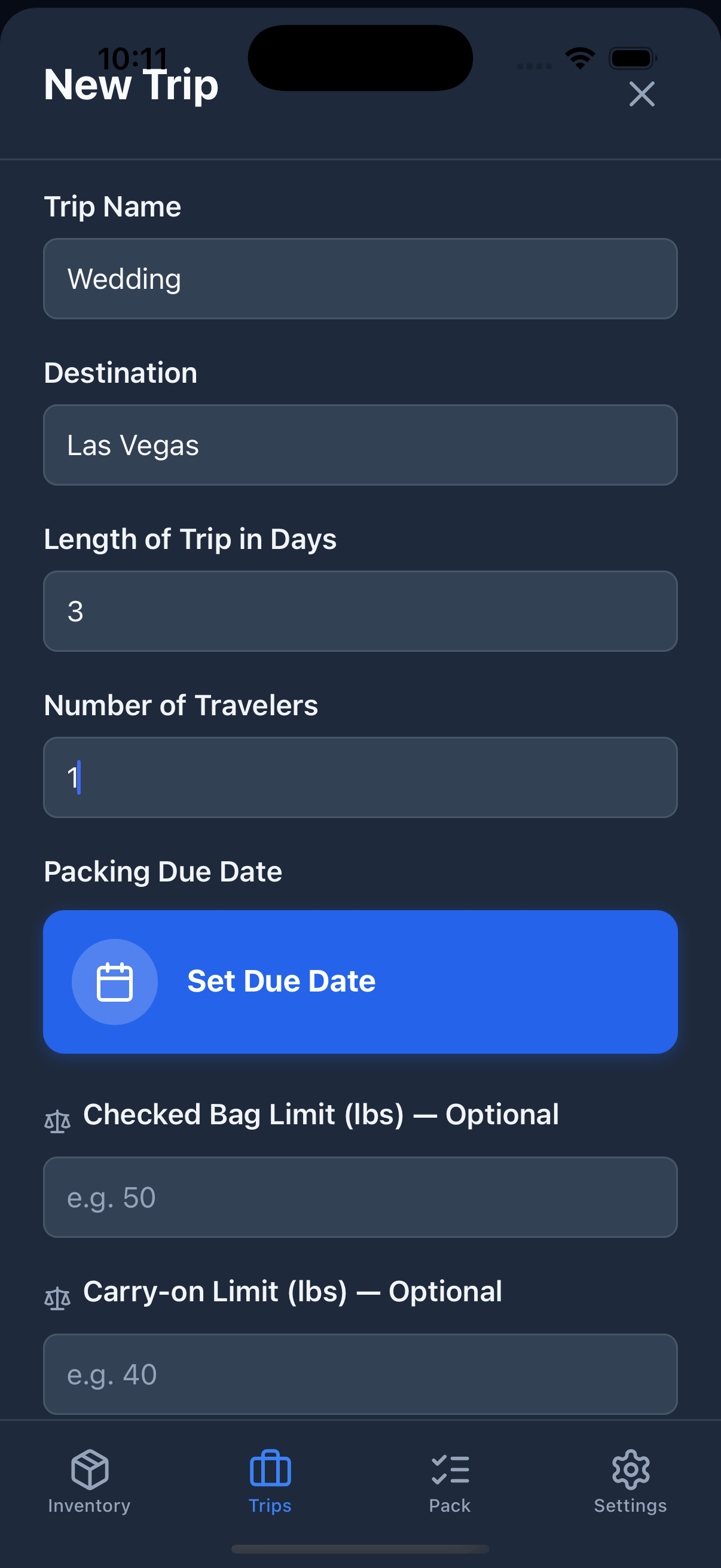
3. Fill in the details:
| Field | Required | Description |
| --------------------- | -------- | -------------------------------------------- |
| **Name** | Yes | A memorable name (e.g., "Tokyo Spring 2026") |
| **Destination** | Yes | Where you're going |
| **Length (days)** | No | How many days the trip lasts (1–365) |
| **Travelers** | No | Number of people packing (1–99) |
| **Due Date** | No | Set a reminder to start packing |
| **Checked Bag Limit** | No | Weight cap for your checked luggage (Pro) |
| **Carry-on Limit** | No | Weight cap for your carry-on bag (Pro) |
4. Tap **Create Trip**.
Weight caps are optional and require a Pro subscription. Once set, they power the color-coded weight indicators in the Pack view. See [Weight Tracking](/weight-tracking) for details.
 ***
## Trip Status
Every trip moves through a lifecycle:
| Status | Meaning |
| ------------ | --------------------------------------------- |
| **Planning** | Building your list and deciding what to bring |
| **Active** | Actively packing for the trip |
| **Archived** | Trip is over, kept for reference |
Change a trip's status from the **⋯** menu on the trip card. The **Trips** tab lets you show/hide archived trips to keep things tidy.
**Only one trip can be Active at a time.** Setting a new trip as Active automatically moves the previous active trip back to Planning.
Archived trips are hidden by default. Tap **Show Archived** on the Trips screen to see them, and use **Restore** from the menu to bring one back to Planning.
***
## Adding Items to a Trip
1. Open a trip.
2. Tap **Add Items**.
3. Browse your inventory and select the items you want to bring.
4. Tap **Done**.
Added items appear in your packing list. You can add or remove items any time before or during the trip.
***
## Trip Status
Every trip moves through a lifecycle:
| Status | Meaning |
| ------------ | --------------------------------------------- |
| **Planning** | Building your list and deciding what to bring |
| **Active** | Actively packing for the trip |
| **Archived** | Trip is over, kept for reference |
Change a trip's status from the **⋯** menu on the trip card. The **Trips** tab lets you show/hide archived trips to keep things tidy.
**Only one trip can be Active at a time.** Setting a new trip as Active automatically moves the previous active trip back to Planning.
Archived trips are hidden by default. Tap **Show Archived** on the Trips screen to see them, and use **Restore** from the menu to bring one back to Planning.
***
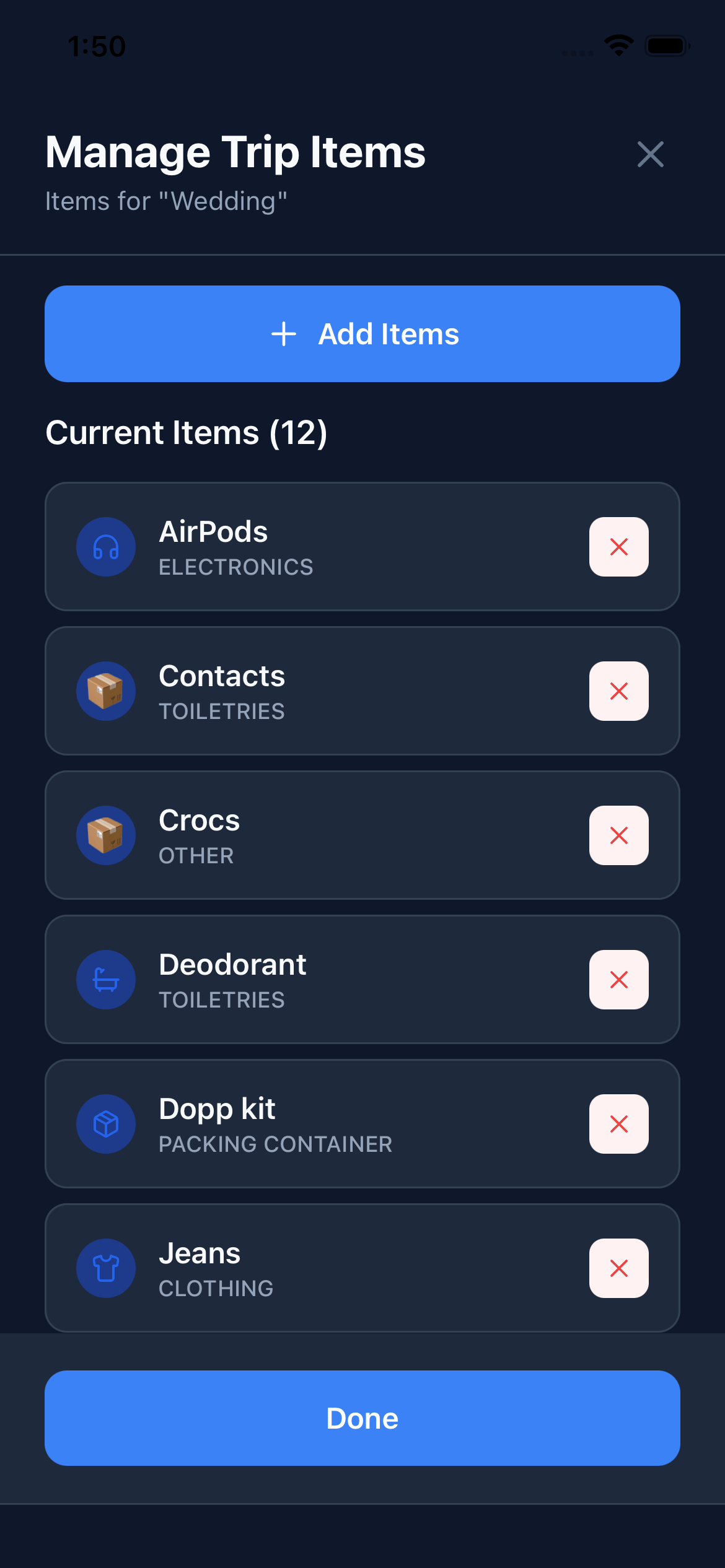
## Adding Items to a Trip
1. Open a trip.
2. Tap **Add Items**.
3. Browse your inventory and select the items you want to bring.
4. Tap **Done**.
Added items appear in your packing list. You can add or remove items any time before or during the trip.
 ***
## Containers
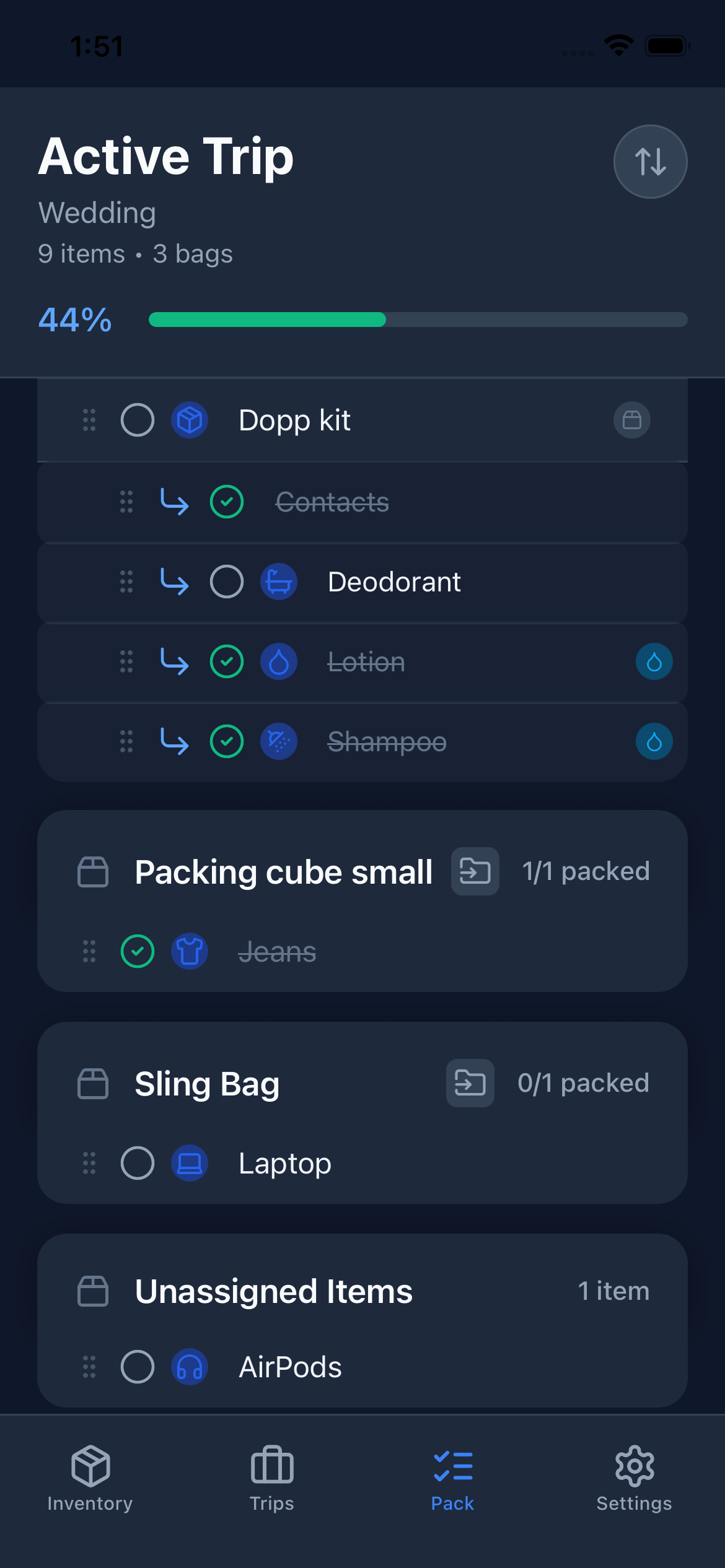
Containers let you organize items inside your trip, just like physically packing things into bags.
Any inventory item with the **Packing Container** category can be used as a container (suitcase, backpack, packing cube, tote, etc.).
### Adding a Container
1. Add the container item to your trip just like any other item.
2. Once added, other items can be assigned to it.
3. In the packing list, drag items under the container header, or use the move option.
### Nested Containers
Containers can be nested inside other containers. For example, a packing cube can sit inside a suitcase.
* Maximum nesting depth: 1 level (container within a container)
* Circular nesting is not allowed (A inside B inside A)
### The Unassigned Section
Items not assigned to any container appear in an **Unassigned** section at the bottom of your packing list. This is useful for loose items like a passport or phone charger you keep close at hand.
***
## Containers
Containers let you organize items inside your trip, just like physically packing things into bags.
Any inventory item with the **Packing Container** category can be used as a container (suitcase, backpack, packing cube, tote, etc.).
### Adding a Container
1. Add the container item to your trip just like any other item.
2. Once added, other items can be assigned to it.
3. In the packing list, drag items under the container header, or use the move option.
### Nested Containers
Containers can be nested inside other containers. For example, a packing cube can sit inside a suitcase.
* Maximum nesting depth: 1 level (container within a container)
* Circular nesting is not allowed (A inside B inside A)
### The Unassigned Section
Items not assigned to any container appear in an **Unassigned** section at the bottom of your packing list. This is useful for loose items like a passport or phone charger you keep close at hand.
 ***
## Reading Trip Cards
Each trip card in the Trips tab shows:
* **Destination** and trip length in days
* **Number of travelers**
* **Due date,** color-coded by urgency. Red means overdue, orange means due within 24 hours, and green means due in the future.
* **Weight caps** (if set): your checked bag and/or carry-on limits, shown below the due date. Requires Pro — see [Weight Tracking](/weight-tracking).
* **Status badge:** Planning (yellow), Active (green), Archived (gray)
* **Bell icon:** A bell with a line through it means a notification is scheduled.
***
## Reading Trip Cards
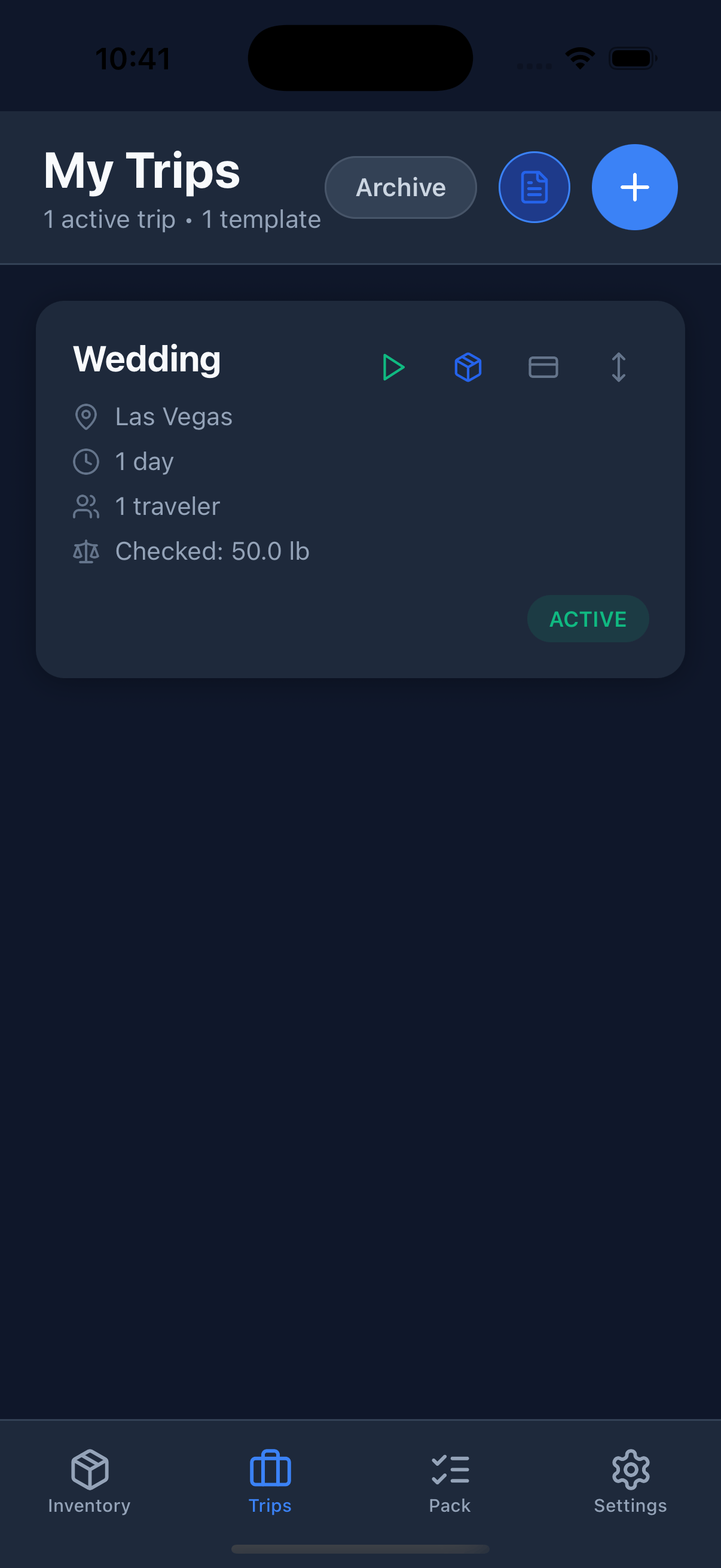
Each trip card in the Trips tab shows:
* **Destination** and trip length in days
* **Number of travelers**
* **Due date,** color-coded by urgency. Red means overdue, orange means due within 24 hours, and green means due in the future.
* **Weight caps** (if set): your checked bag and/or carry-on limits, shown below the due date. Requires Pro — see [Weight Tracking](/weight-tracking).
* **Status badge:** Planning (yellow), Active (green), Archived (gray)
* **Bell icon:** A bell with a line through it means a notification is scheduled.
 ***
## Reminders
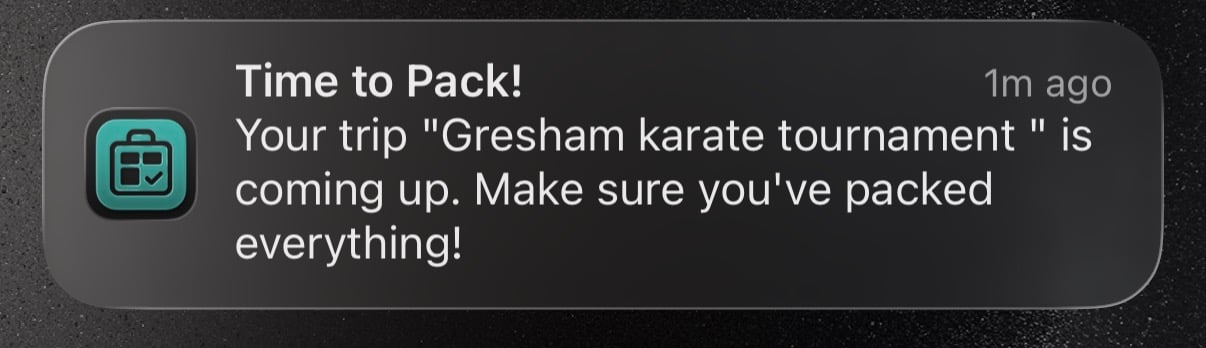
PackKit sends two kinds of push notifications to keep your packing on track. Both require notification permission — if you haven't granted it yet, go to **Settings → PackKit → Notifications** and enable them.
### Due Date Reminder
Set a **Due Date** on any trip to receive a one-time push notification on that date reminding you to start packing.
1. Create or edit a trip.
2. Set the **Due Date** field.
3. Tap **Save**.
To clear the reminder, edit the trip, remove the due date, and save.
### Departure Reminders
When a trip has a **start date**, PackKit automatically schedules two departure reminders:
| When | Notification |
| ------------------------------- | ---------------------------------- |
| 9 AM, two days before departure | "*\[Trip name]* departs in 2 days" |
| 9 AM, the day before departure | "*\[Trip name]* departs tomorrow" |
The notification body shows your current packing progress — for example, *"You're 60% packed — tap to finish up."* Each time you check or uncheck an item, the reminders are rescheduled so the percentage stays accurate. If you've packed everything, the reminders are skipped automatically.
Departure reminders are cancelled when you delete a trip. If you change the trip's start date or name, the reminders update automatically.
***
## Reminders
PackKit sends two kinds of push notifications to keep your packing on track. Both require notification permission — if you haven't granted it yet, go to **Settings → PackKit → Notifications** and enable them.
### Due Date Reminder
Set a **Due Date** on any trip to receive a one-time push notification on that date reminding you to start packing.
1. Create or edit a trip.
2. Set the **Due Date** field.
3. Tap **Save**.
To clear the reminder, edit the trip, remove the due date, and save.
### Departure Reminders
When a trip has a **start date**, PackKit automatically schedules two departure reminders:
| When | Notification |
| ------------------------------- | ---------------------------------- |
| 9 AM, two days before departure | "*\[Trip name]* departs in 2 days" |
| 9 AM, the day before departure | "*\[Trip name]* departs tomorrow" |
The notification body shows your current packing progress — for example, *"You're 60% packed — tap to finish up."* Each time you check or uncheck an item, the reminders are rescheduled so the percentage stays accurate. If you've packed everything, the reminders are skipped automatically.
Departure reminders are cancelled when you delete a trip. If you change the trip's start date or name, the reminders update automatically.
 ***
## Sharing a Trip Pro
Share a read-only snapshot of your packing list with travel companions — no account or app required. Anyone who has the link can open it in a browser.
Share links are **public**. Anyone who has the URL can view your packing list, even without an account. Do not share links in public spaces, and revoke the link when you no longer want others to access your list.
### Creating a Share Link
1. On the **Trips** tab, tap the **⋯** menu on any trip card.
2. Select **Share Trip**.
3. PackKit generates a unique link. Tap the link row to open the system Share sheet and send it however you like (Messages, email, copy, etc.).
4. Tap **Share** to open the Share sheet directly.
The link stays active until you revoke it. If you share the same trip again, PackKit reuses the existing link rather than creating a new one.
### Revoking a Share Link
1. Open the **⋯** menu on the trip and tap **Share Trip**.
2. Tap **Revoke Link**.
3. Confirm the prompt.
Once revoked, the old link immediately returns a "not found" error for anyone who tries to open it. You can generate a new link at any time by sharing the trip again.
### What Viewers See
The shared page shows:
* Trip name, destination, and dates
* Full packing list, organized by container (read-only — viewers cannot check or uncheck items)
* Which items are checked off at the moment the page is loaded
Viewers do not need a PackKit account. The page is served at `packkit.me/s` and works in any browser.
***
## Exporting a Trip Pro
Export any trip's packing list as a PDF — useful for printing or sharing with someone who doesn't have the app.
1. On the **Trips** tab, tap the **⋯** menu on any trip card.
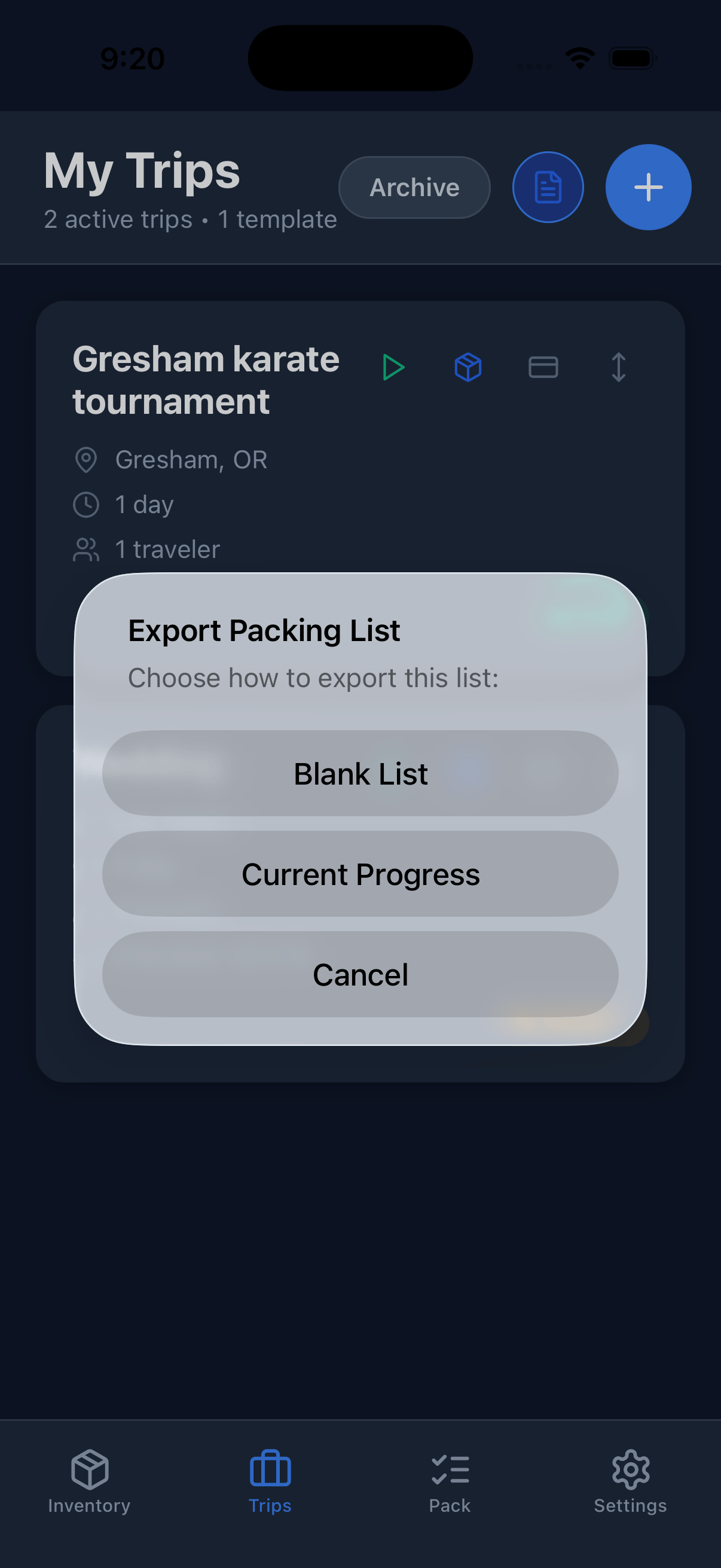
2. Select **Export Packing List**.
3. Choose an export mode:
| Mode | What it includes |
| -------------------- | ------------------------------------------------------------------------ |
| **Blank List** | Every item with an empty checkbox — ideal for printing a fresh checklist |
| **Current Progress** | Items shown with their current packed/unpacked state |
4. Your device's standard share sheet opens with the generated PDF. Save it to Files, print it, or send it however you like.
***
## Sharing a Trip Pro
Share a read-only snapshot of your packing list with travel companions — no account or app required. Anyone who has the link can open it in a browser.
Share links are **public**. Anyone who has the URL can view your packing list, even without an account. Do not share links in public spaces, and revoke the link when you no longer want others to access your list.
### Creating a Share Link
1. On the **Trips** tab, tap the **⋯** menu on any trip card.
2. Select **Share Trip**.
3. PackKit generates a unique link. Tap the link row to open the system Share sheet and send it however you like (Messages, email, copy, etc.).
4. Tap **Share** to open the Share sheet directly.
The link stays active until you revoke it. If you share the same trip again, PackKit reuses the existing link rather than creating a new one.
### Revoking a Share Link
1. Open the **⋯** menu on the trip and tap **Share Trip**.
2. Tap **Revoke Link**.
3. Confirm the prompt.
Once revoked, the old link immediately returns a "not found" error for anyone who tries to open it. You can generate a new link at any time by sharing the trip again.
### What Viewers See
The shared page shows:
* Trip name, destination, and dates
* Full packing list, organized by container (read-only — viewers cannot check or uncheck items)
* Which items are checked off at the moment the page is loaded
Viewers do not need a PackKit account. The page is served at `packkit.me/s` and works in any browser.
***
## Exporting a Trip Pro
Export any trip's packing list as a PDF — useful for printing or sharing with someone who doesn't have the app.
1. On the **Trips** tab, tap the **⋯** menu on any trip card.
2. Select **Export Packing List**.
3. Choose an export mode:
| Mode | What it includes |
| -------------------- | ------------------------------------------------------------------------ |
| **Blank List** | Every item with an empty checkbox — ideal for printing a fresh checklist |
| **Current Progress** | Items shown with their current packed/unpacked state |
4. Your device's standard share sheet opens with the generated PDF. Save it to Files, print it, or send it however you like.
 ***
## Trip Templates
Templates let you save a packing list and reuse it for future trips. This is especially useful if you travel to the same destination regularly or always pack the same gear for a certain type of trip.
### Creating a Trip from a Template
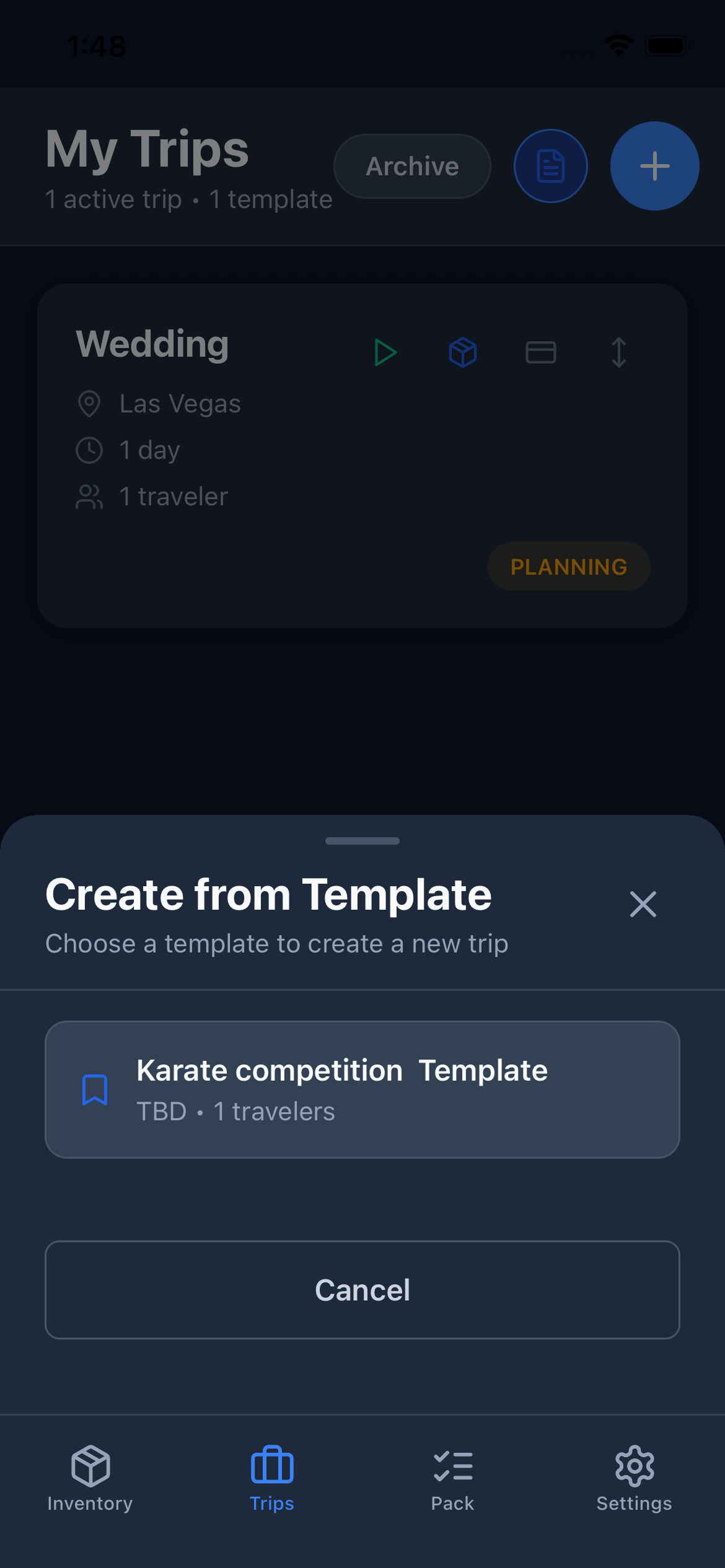
1. On the **Trips** tab, tap **New Trip** and then **From Template**.
2. Select a template from the list.
3. Edit the trip details (name, destination, dates).
4. Tap **Create**.
The new trip starts with the same items and container structure as the template.
***
## Trip Templates
Templates let you save a packing list and reuse it for future trips. This is especially useful if you travel to the same destination regularly or always pack the same gear for a certain type of trip.
### Creating a Trip from a Template
1. On the **Trips** tab, tap **New Trip** and then **From Template**.
2. Select a template from the list.
3. Edit the trip details (name, destination, dates).
4. Tap **Create**.
The new trip starts with the same items and container structure as the template.
 ### Saving a Trip as a Template
1. Open an existing trip.
2. Tap the **⋯** (more) menu.
3. Select **Save as Template**.
4. Give the template a name.
5. Tap **Save**.
Save templates right after a successful trip while the list is fresh. It'll be your best starting point next time.
### Managing Templates
Templates appear in their own section of the **Trips** tab. You can:
* Create a new trip from any template
* Delete a template you no longer need
Deleting a template does not affect trips that were already created from it.
***
## Editing and Deleting a Trip
* **Edit:** Tap the **⋯** menu on any trip card and choose **Edit**.
* **Delete:** Tap the **⋯** menu and choose **Delete**. This removes the trip and its packing list permanently.
Deleted trips cannot be recovered. If you want to keep the packing list, save it as a template first.
### Saving a Trip as a Template
1. Open an existing trip.
2. Tap the **⋯** (more) menu.
3. Select **Save as Template**.
4. Give the template a name.
5. Tap **Save**.
Save templates right after a successful trip while the list is fresh. It'll be your best starting point next time.
### Managing Templates
Templates appear in their own section of the **Trips** tab. You can:
* Create a new trip from any template
* Delete a template you no longer need
Deleting a template does not affect trips that were already created from it.
***
## Editing and Deleting a Trip
* **Edit:** Tap the **⋯** menu on any trip card and choose **Edit**.
* **Delete:** Tap the **⋯** menu and choose **Delete**. This removes the trip and its packing list permanently.
Deleted trips cannot be recovered. If you want to keep the packing list, save it as a template first.