> ## Documentation Index
> Fetch the complete documentation index at: https://winglessenterprises.mintlify.site/llms.txt
> Use this file to discover all available pages before exploring further.
# Settings
> Manage your appearance, weight unit, subscription, and account.
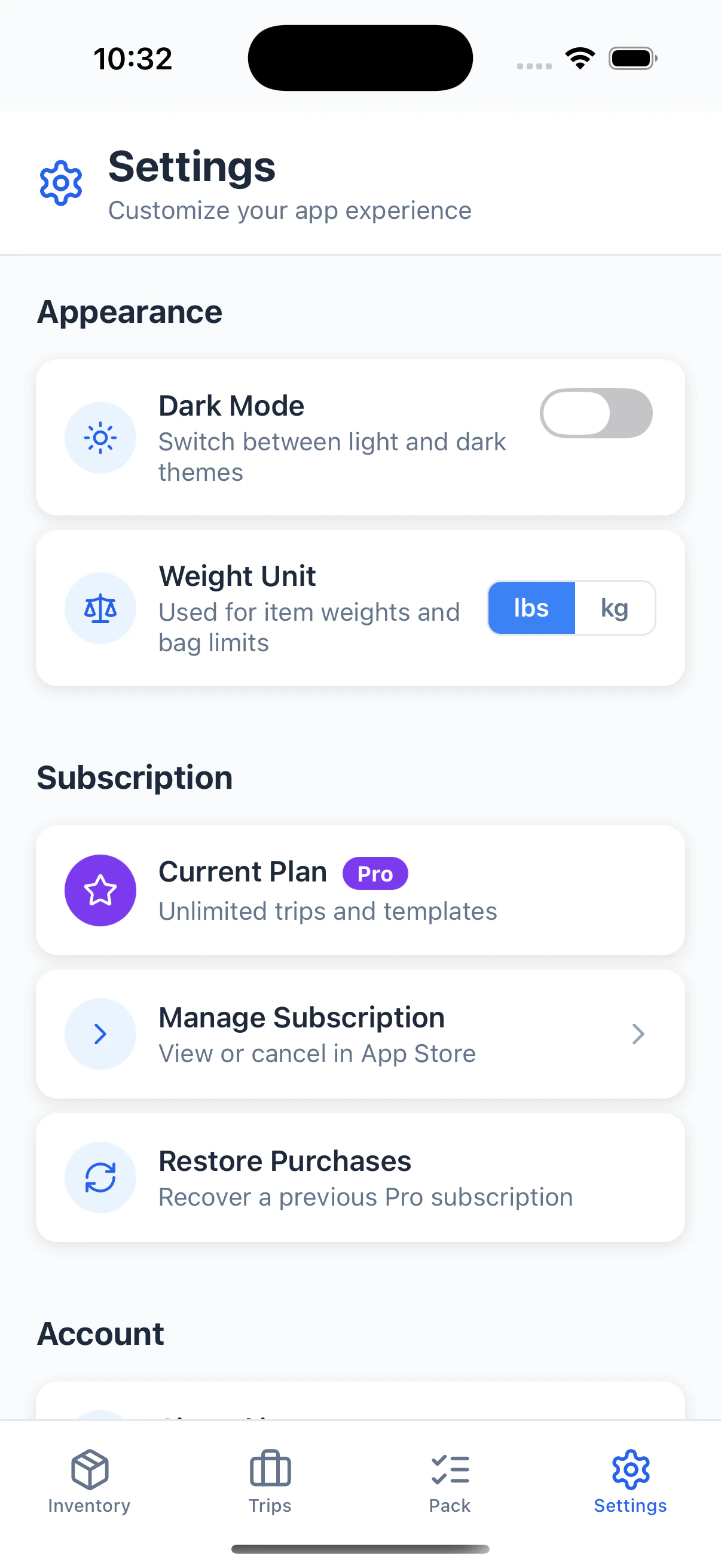
The **Settings** tab is where you manage your preferences and account.
***
## Appearance
### Dark Mode
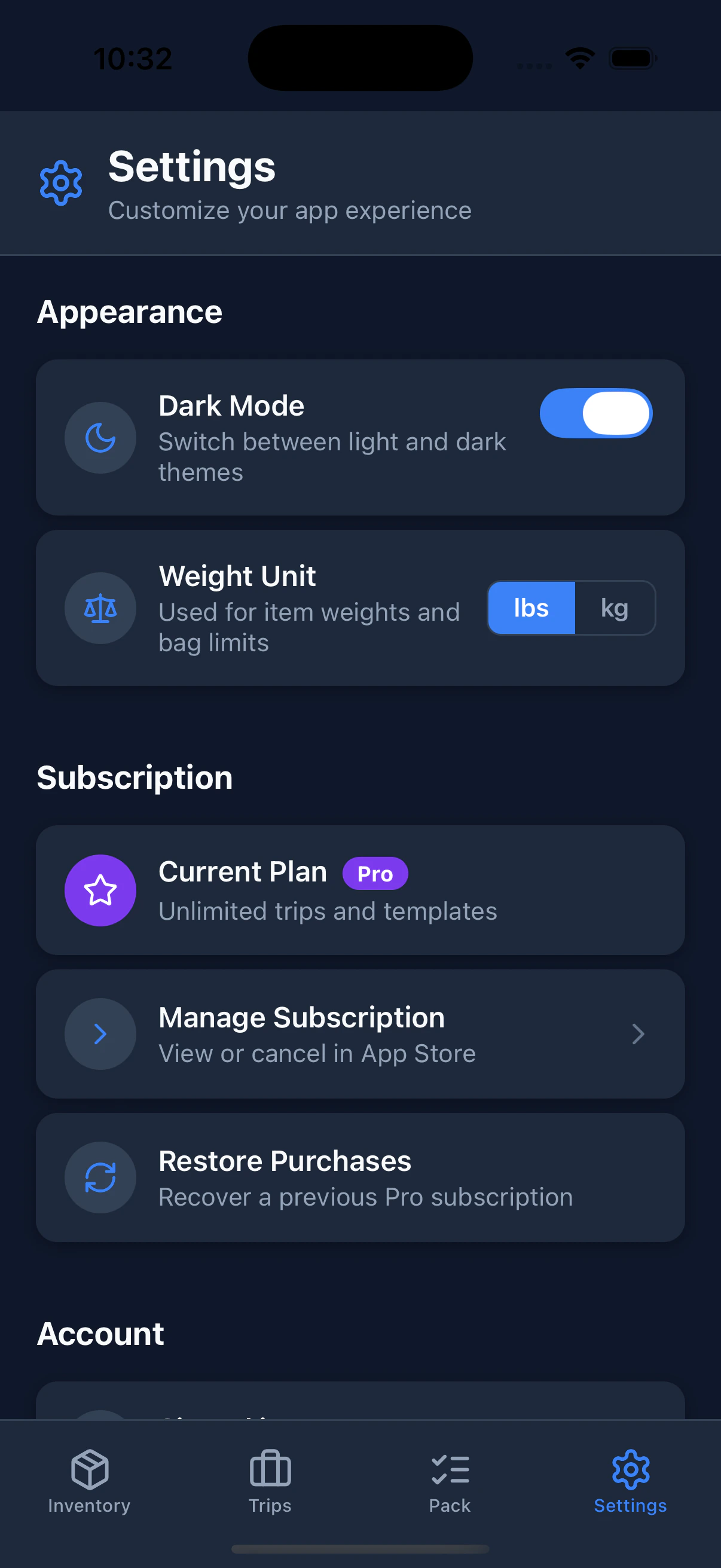
Toggle dark mode on or off with the **Dark Mode** switch. Your preference is saved to your account and automatically applied whenever you sign in, on any device.
### Weight Unit
Choose between **lbs** and **kg** using the **Weight Unit** toggle. This controls how weights are displayed and entered throughout the app — in your inventory items, trip weight caps, and the Pack view indicators. Your preference is saved to your account and syncs across devices.
See [Weight Tracking](/weight-tracking) for more on how weights work.
 ***
## Subscription
The **Subscription** section shows your current plan and lets you manage it.
| Row | What it does |
| ----------------------- | ----------------------------------------------------------------------------------------------------- |
| **Current Plan** | Shows your plan status with a color-coded badge |
| **Manage Subscription** | Opens the App Store to upgrade, downgrade, or cancel |
| **Restore Purchases** | Re-activates a Pro subscription you already paid for (useful after reinstalling or switching devices) |
Pro features include weight tracking, unlimited trips, templates, trip sharing, and PDF export.
### Subscription States
The **Current Plan** row changes based on your subscription status:
| Badge | What it means | What to do |
| -------------------------------- | --------------------------------------------------------------------------------------- | -------------------------------------------------------------------- |
| **Free** | No active subscription — limited to 3 trips and 2 templates | Tap **Upgrade to Pro** to unlock everything |
| **Trial** | You're in a free trial period — shows days remaining | Tap **Manage Subscription** to convert to a paid plan before it ends |
| **Pro** | Active paid subscription | Tap **Manage Subscription** to view, downgrade, or cancel |
| **Cancelled** | You cancelled, but Pro access continues until the end of the billing period | Tap **Resubscribe to Pro** if you change your mind |
| **Expired** | Your subscription ended and Pro features are no longer active | Tap **Resubscribe to Pro** to regain access |
| **Pro** *(with payment warning)* | Payment failed — Apple is retrying the charge and your access is temporarily maintained | Tap **Fix Payment Method** to update your card in the App Store |
***
## Account Information
Your account details are shown in the Settings tab:
* **Email address:** The email you used to register
These are read-only. To change your email address, contact support.
***
## Changing Your Password
If you signed up with email and password:
1. On the login screen, tap **Forgot password**.
2. Enter your email address and tap **Send Code**.
3. Check your inbox for an email from **[noreply@packkit.me](mailto:noreply@packkit.me)** containing a **6-digit code**.
4. Enter the code in the app on the "Check Your Email" screen.
5. On the "Set New Password" screen, enter your new password (must be different from your current one) and confirm it.
6. Tap **Save**. You'll be signed in automatically.
If you signed up with Apple or Google, your password is managed by that provider. Visit their account settings to make changes.
***
## Signing Out
1. Open the **Settings** tab.
2. Tap **Sign Out**.
3. Confirm.
You'll be returned to the sign-in screen. Your data is safely stored in the cloud. Sign in again any time to access it.
***
## Data & Privacy
PackKit stores your inventory, trips, and settings in a secure cloud database. Your data is:
* Only accessible to your account
* Not shared with third parties
* Retained as long as your account is active
For full details, see our [Privacy Policy](https://packkit.me/privacy).
***
## App Version
Your current app version and build number are shown at the bottom of the Settings tab. Include both when contacting support.
***
## Getting Help
Having a problem or have a suggestion? Reach out at **[support@packkit.me](mailto:support@packkit.me)** and include your app version and a description of what happened.
***
## Subscription
The **Subscription** section shows your current plan and lets you manage it.
| Row | What it does |
| ----------------------- | ----------------------------------------------------------------------------------------------------- |
| **Current Plan** | Shows your plan status with a color-coded badge |
| **Manage Subscription** | Opens the App Store to upgrade, downgrade, or cancel |
| **Restore Purchases** | Re-activates a Pro subscription you already paid for (useful after reinstalling or switching devices) |
Pro features include weight tracking, unlimited trips, templates, trip sharing, and PDF export.
### Subscription States
The **Current Plan** row changes based on your subscription status:
| Badge | What it means | What to do |
| -------------------------------- | --------------------------------------------------------------------------------------- | -------------------------------------------------------------------- |
| **Free** | No active subscription — limited to 3 trips and 2 templates | Tap **Upgrade to Pro** to unlock everything |
| **Trial** | You're in a free trial period — shows days remaining | Tap **Manage Subscription** to convert to a paid plan before it ends |
| **Pro** | Active paid subscription | Tap **Manage Subscription** to view, downgrade, or cancel |
| **Cancelled** | You cancelled, but Pro access continues until the end of the billing period | Tap **Resubscribe to Pro** if you change your mind |
| **Expired** | Your subscription ended and Pro features are no longer active | Tap **Resubscribe to Pro** to regain access |
| **Pro** *(with payment warning)* | Payment failed — Apple is retrying the charge and your access is temporarily maintained | Tap **Fix Payment Method** to update your card in the App Store |
***
## Account Information
Your account details are shown in the Settings tab:
* **Email address:** The email you used to register
These are read-only. To change your email address, contact support.
***
## Changing Your Password
If you signed up with email and password:
1. On the login screen, tap **Forgot password**.
2. Enter your email address and tap **Send Code**.
3. Check your inbox for an email from **[noreply@packkit.me](mailto:noreply@packkit.me)** containing a **6-digit code**.
4. Enter the code in the app on the "Check Your Email" screen.
5. On the "Set New Password" screen, enter your new password (must be different from your current one) and confirm it.
6. Tap **Save**. You'll be signed in automatically.
If you signed up with Apple or Google, your password is managed by that provider. Visit their account settings to make changes.
***
## Signing Out
1. Open the **Settings** tab.
2. Tap **Sign Out**.
3. Confirm.
You'll be returned to the sign-in screen. Your data is safely stored in the cloud. Sign in again any time to access it.
***
## Data & Privacy
PackKit stores your inventory, trips, and settings in a secure cloud database. Your data is:
* Only accessible to your account
* Not shared with third parties
* Retained as long as your account is active
For full details, see our [Privacy Policy](https://packkit.me/privacy).
***
## App Version
Your current app version and build number are shown at the bottom of the Settings tab. Include both when contacting support.
***
## Getting Help
Having a problem or have a suggestion? Reach out at **[support@packkit.me](mailto:support@packkit.me)** and include your app version and a description of what happened.