> ## Documentation Index
> Fetch the complete documentation index at: https://winglessenterprises.mintlify.site/llms.txt
> Use this file to discover all available pages before exploring further.
# Packing
> Use the Pack tab to check items off in real time as you pack your bags.
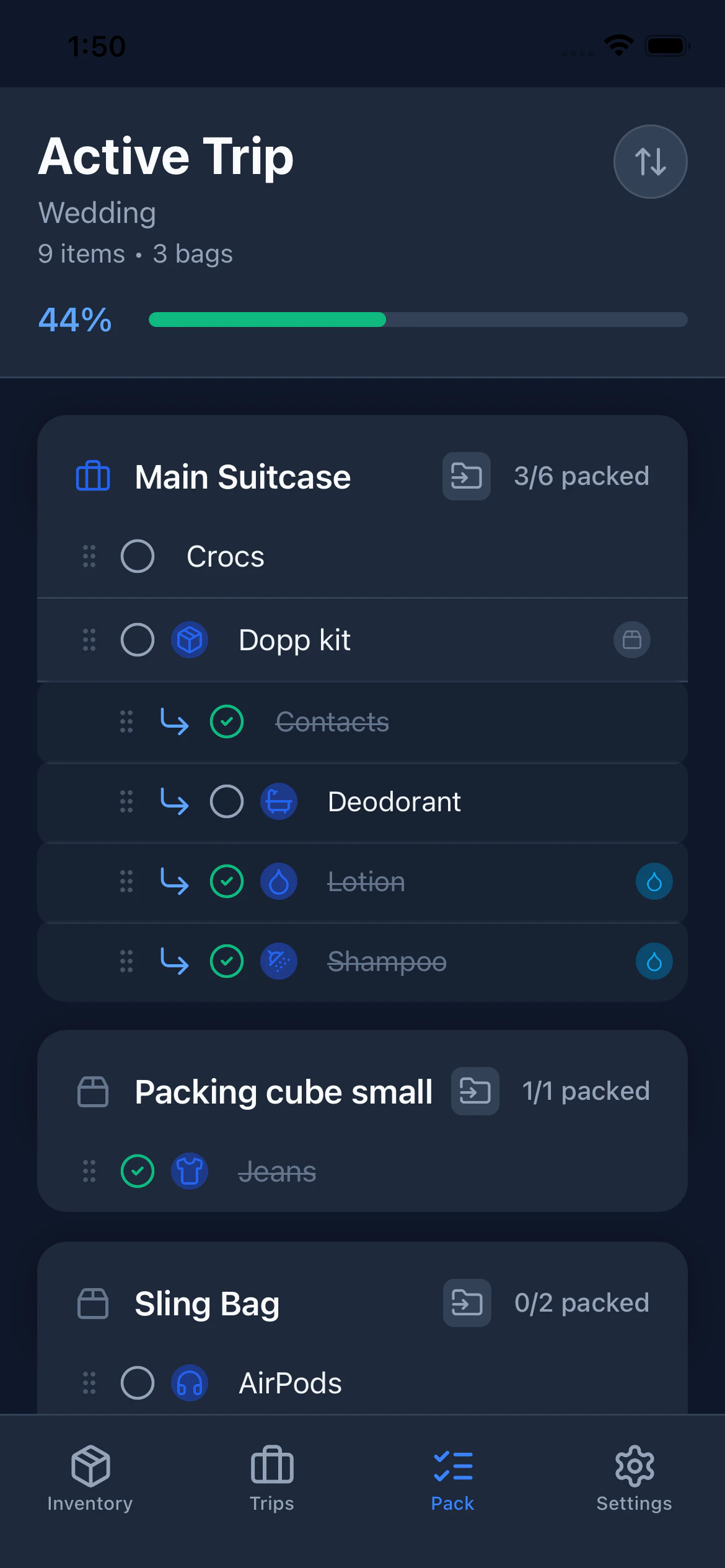
The **Pack** tab is your active packing checklist. It shows your current trip's items organized by container, with a progress bar at the top so you always know where you stand.
***
## Your Current Trip
The Pack tab always shows your **Active** trip. If no trip is set to Active, the tab shows a "No Active Trip" message with instructions to go set one in the Trips tab.
The Pack header shows:
* Your trip name
* A subtitle with the total item count and number of bags
 ***
## The Progress Bar
At the top of the Pack view, a progress bar shows how many items you've packed out of the total. The bar fills as you check items off.
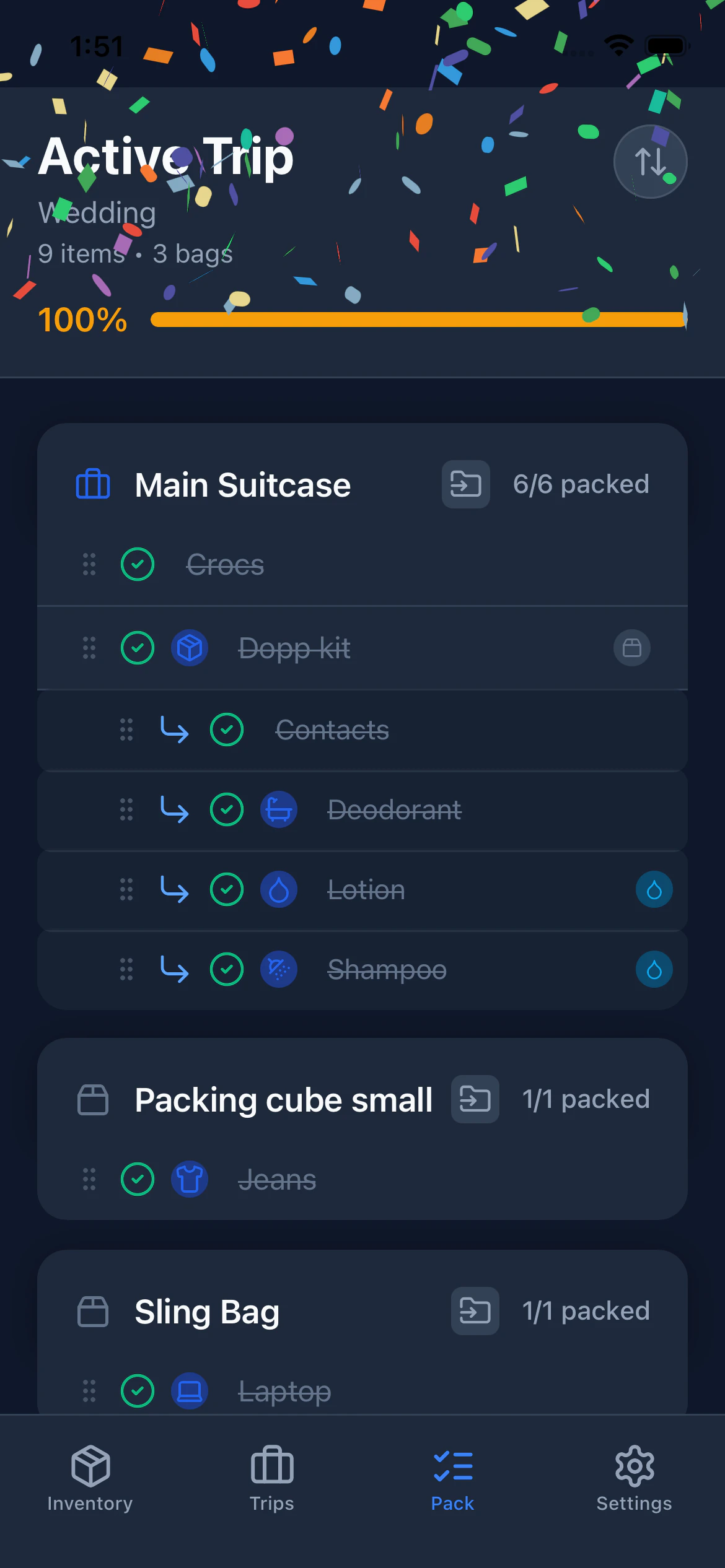
When you reach **100%**, every item is packed and PackKit celebrates with confetti and a gold progress bar.
Packing containers (bags) themselves don't count toward the total — only the items inside them do. So checking off your last bag won't trigger confetti if there are still unpacked items inside it.
***
## The Progress Bar
At the top of the Pack view, a progress bar shows how many items you've packed out of the total. The bar fills as you check items off.
When you reach **100%**, every item is packed and PackKit celebrates with confetti and a gold progress bar.
Packing containers (bags) themselves don't count toward the total — only the items inside them do. So checking off your last bag won't trigger confetti if there are still unpacked items inside it.
 ***
## Checking Items Off
Tap the checkbox next to any item to mark it as packed. Tap again to unpack it.
Each interaction gives you **haptic feedback** for a tactile response without looking at the screen, which is especially useful when you're physically packing.
***
## Container Types and Colors
PackKit automatically styles container section headers based on the icon you chose for that inventory item:
| Icon | Container Type | Header Color |
| ------------- | -------------- | ------------ |
| Briefcase | Suitcase | Blue |
| Backpack | Backpack | Teal |
| Laptop | Purse/Bag | Orange |
| Anything else | Generic bag | Gray |
The color is a visual hint only. The container type label is always shown as text in the header.
***
## How Items Are Organized
The packing list mirrors the container structure you set up in the trip:
```
Suitcase
├── Blue Shirt
├── Jeans
└── Packing Cube
├── Socks
└── Underwear
Backpack
├── Laptop
└── Charger
Unassigned
└── Passport
```
Container headers appear as section separators. Items inside containers are indented under their container name. Items not assigned to any container appear at the bottom under **Unassigned**.
***
## Sorting and Reordering
Tap the **sort button** in the top-right of the Pack view to cycle through three modes:
| Mode | Icon | Behavior |
| ---------- | ---- | ----------------------------------------------------- |
| **Custom** | ↑↓ | Press and hold the grip handle to drag items manually |
| **A → Z** | A→Z | Alphabetical ascending |
| **Z → A** | Z→A | Alphabetical descending |
The sort button highlights when you're in an alphabetical mode.
### Drag and Drop (Custom mode only)
1. Switch to **Custom** sort mode.
2. Press and hold the **grip handle** (six dots) on the left side of an item.
3. Drag it to a new position.
4. Release to drop.
Dragging an item under a container header assigns it to that container. Dragging it to the **Unassigned** section removes it from any container. PackKit prevents invalid moves such as moving a container into itself.
***
## Swipe Actions on Items
**Swipe right** on any item to reveal a quick action:
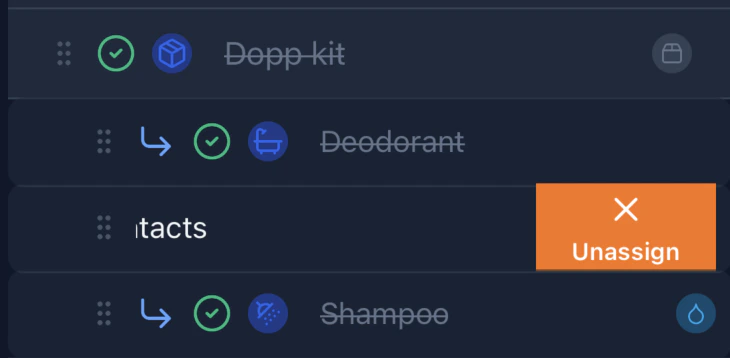
* **Unassign** (orange — on items inside a container): moves the item back to the Unassigned section. Reversible.
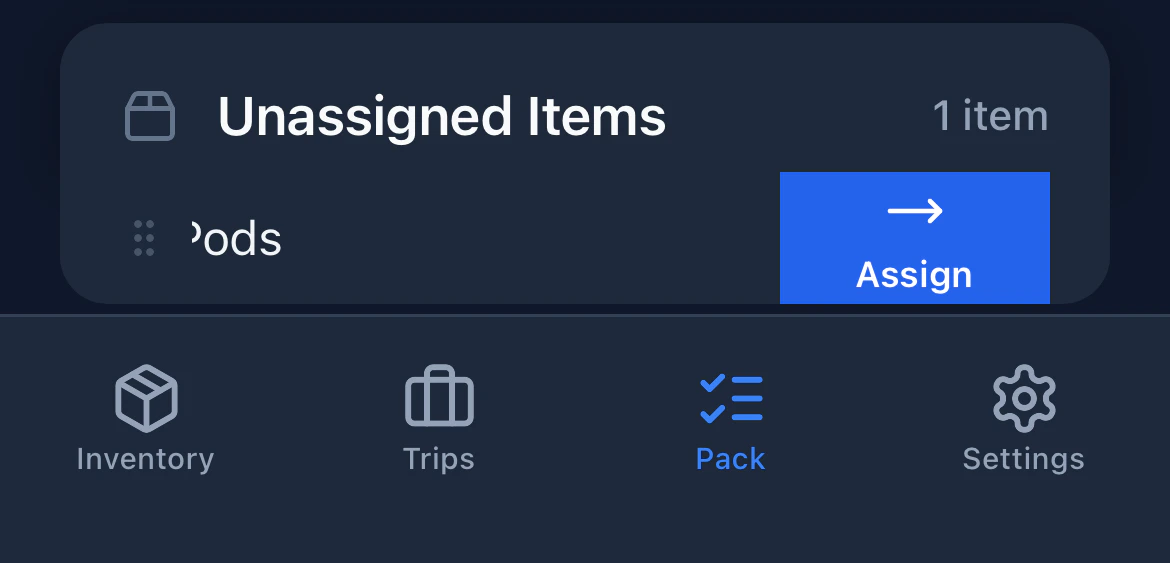
* **Assign** (blue — on unassigned items): opens a modal to pick which container to move it to.
The modal shows all your containers. Tap one to assign the item, or tap **Unassigned** to leave it loose.
***
## Checking Items Off
Tap the checkbox next to any item to mark it as packed. Tap again to unpack it.
Each interaction gives you **haptic feedback** for a tactile response without looking at the screen, which is especially useful when you're physically packing.
***
## Container Types and Colors
PackKit automatically styles container section headers based on the icon you chose for that inventory item:
| Icon | Container Type | Header Color |
| ------------- | -------------- | ------------ |
| Briefcase | Suitcase | Blue |
| Backpack | Backpack | Teal |
| Laptop | Purse/Bag | Orange |
| Anything else | Generic bag | Gray |
The color is a visual hint only. The container type label is always shown as text in the header.
***
## How Items Are Organized
The packing list mirrors the container structure you set up in the trip:
```
Suitcase
├── Blue Shirt
├── Jeans
└── Packing Cube
├── Socks
└── Underwear
Backpack
├── Laptop
└── Charger
Unassigned
└── Passport
```
Container headers appear as section separators. Items inside containers are indented under their container name. Items not assigned to any container appear at the bottom under **Unassigned**.
***
## Sorting and Reordering
Tap the **sort button** in the top-right of the Pack view to cycle through three modes:
| Mode | Icon | Behavior |
| ---------- | ---- | ----------------------------------------------------- |
| **Custom** | ↑↓ | Press and hold the grip handle to drag items manually |
| **A → Z** | A→Z | Alphabetical ascending |
| **Z → A** | Z→A | Alphabetical descending |
The sort button highlights when you're in an alphabetical mode.
### Drag and Drop (Custom mode only)
1. Switch to **Custom** sort mode.
2. Press and hold the **grip handle** (six dots) on the left side of an item.
3. Drag it to a new position.
4. Release to drop.
Dragging an item under a container header assigns it to that container. Dragging it to the **Unassigned** section removes it from any container. PackKit prevents invalid moves such as moving a container into itself.
***
## Swipe Actions on Items
**Swipe right** on any item to reveal a quick action:
* **Unassign** (orange — on items inside a container): moves the item back to the Unassigned section. Reversible.
* **Assign** (blue — on unassigned items): opens a modal to pick which container to move it to.
The modal shows all your containers. Tap one to assign the item, or tap **Unassigned** to leave it loose.
 **Swipe left** on any item to remove it from the trip entirely:
* **Remove** (dark red): deletes the item from your active trip. The item remains in your inventory and can be re-added from the Trips tab.
**Swipe left** on any item to remove it from the trip entirely:
* **Remove** (dark red): deletes the item from your active trip. The item remains in your inventory and can be re-added from the Trips tab.
 ## Swipe Actions on Bag Headers
Bag section headers have their own swipe gestures, separate from item swipes. Weight indicators and bag type (checked vs. carry-on) are part of the [Weight Tracking](/weight-tracking) Pro feature.
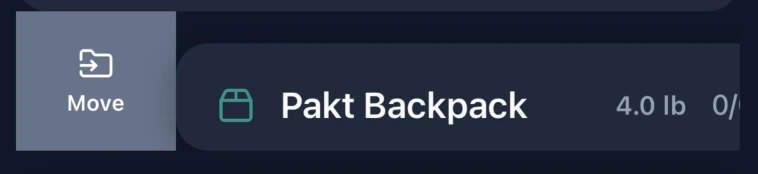
**Swipe right** on a bag header to reveal the **Move** action (gray). Tap it to open the container picker and reassign the bag.
## Swipe Actions on Bag Headers
Bag section headers have their own swipe gestures, separate from item swipes. Weight indicators and bag type (checked vs. carry-on) are part of the [Weight Tracking](/weight-tracking) Pro feature.
**Swipe right** on a bag header to reveal the **Move** action (gray). Tap it to open the container picker and reassign the bag.
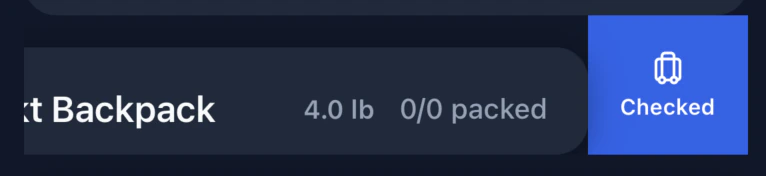
 **Swipe left** on a bag header to toggle whether the bag is checked or carry-on:
* **Checked** (blue): tap to mark the bag as a checked bag, applying your trip's checked bag weight cap.
* **Carry-on** (teal): tap to mark the bag as a carry-on, applying your trip's carry-on weight cap.
**Swipe left** on a bag header to toggle whether the bag is checked or carry-on:
* **Checked** (blue): tap to mark the bag as a checked bag, applying your trip's checked bag weight cap.
* **Carry-on** (teal): tap to mark the bag as a carry-on, applying your trip's carry-on weight cap.
 ***
## Liquid Items
Items marked as **Liquid** in your inventory show a visual indicator in the packing list, reminding you to pack them in your quart-size TSA bag or handle any relevant shipping restrictions.
***
## Tips for Efficient Packing
* **Use containers that match your real bags.** Create a "Suitcase" and "Carry-on" in your inventory so your digital packing list mirrors how you physically pack.
* **Pack from the bottom up.** Check off items as you place them in the bag. Don't pre-check.
* **Leave liquids for last.** They're easy to forget and often packed separately.
* **Save the list as a template** when you're done if it was a good packing configuration.
***
## Liquid Items
Items marked as **Liquid** in your inventory show a visual indicator in the packing list, reminding you to pack them in your quart-size TSA bag or handle any relevant shipping restrictions.
***
## Tips for Efficient Packing
* **Use containers that match your real bags.** Create a "Suitcase" and "Carry-on" in your inventory so your digital packing list mirrors how you physically pack.
* **Pack from the bottom up.** Check off items as you place them in the bag. Don't pre-check.
* **Leave liquids for last.** They're easy to forget and often packed separately.
* **Save the list as a template** when you're done if it was a good packing configuration.