> ## Documentation Index
> Fetch the complete documentation index at: https://winglessenterprises.mintlify.site/llms.txt
> Use this file to discover all available pages before exploring further.
# Inventory
> Build your personal catalog of items once, then reuse it across every trip.
Your inventory is a personal catalog of items you own. You build it once and reuse it across as many trips as you like. Think of it as your master packing list, covering everything you could possibly bring on any trip.
***
## Adding an Item
1. Open the **Inventory** tab.
2. Tap the **+** button.
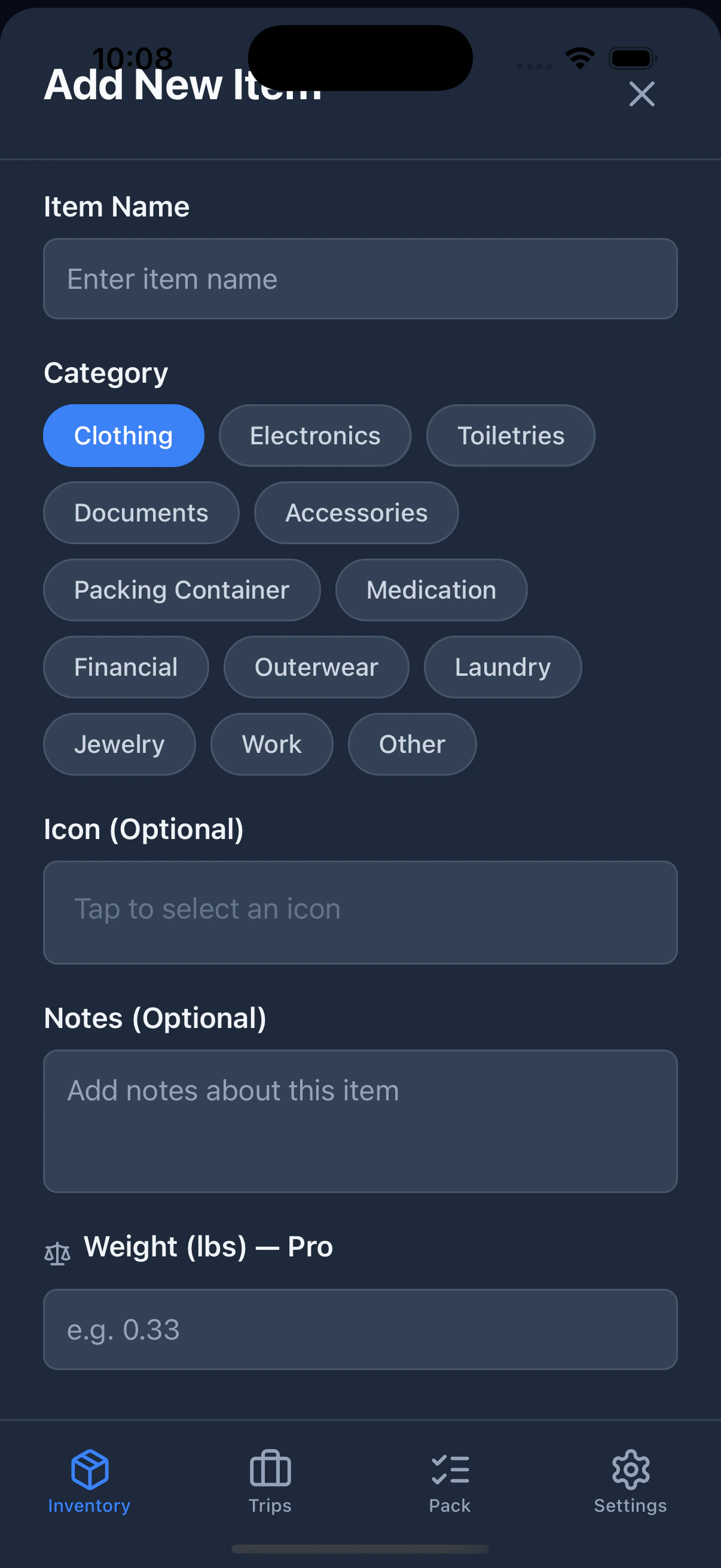
3. Fill in the item details:
| Field | Required | Description |
| ------------ | -------- | ---------------------------------------------------------------------------------------------------------- |
| **Name** | Yes | What the item is (e.g., "Blue Rain Jacket") |
| **Category** | Yes | Group it with similar items |
| **Icon** | No | Visual identifier. Browse 100+ icons. |
| **Notes** | No | Reminders about the item (e.g., "Size M, needs washing") |
| **Liquid** | No | Mark TSA-regulated liquids. Only appears when the category is **Toiletries**. |
| **Weight** | No | The item's weight in your chosen unit (lbs or kg). Requires Pro — see [Weight Tracking](/weight-tracking). |
4. Tap **Add Item**.
You can also add items directly to a specific category by tapping the **+ Add** button next to any category header in the inventory list.
 ***
## Categories
Categories group items in your inventory list. PackKit includes 13 built-in categories:
Clothing, Electronics, Toiletries, Documents, Accessories, Packing Container, Medication, Financial, Outerwear, Laundry, Jewelry, Work, and Other.
**Packing Container** is a special category. Items in this category can act as containers in your trips: suitcases, backpacks, packing cubes, or any bag within a bag. See [Containers](/trips-and-templates#containers) for details.
***
## Choosing an Icon
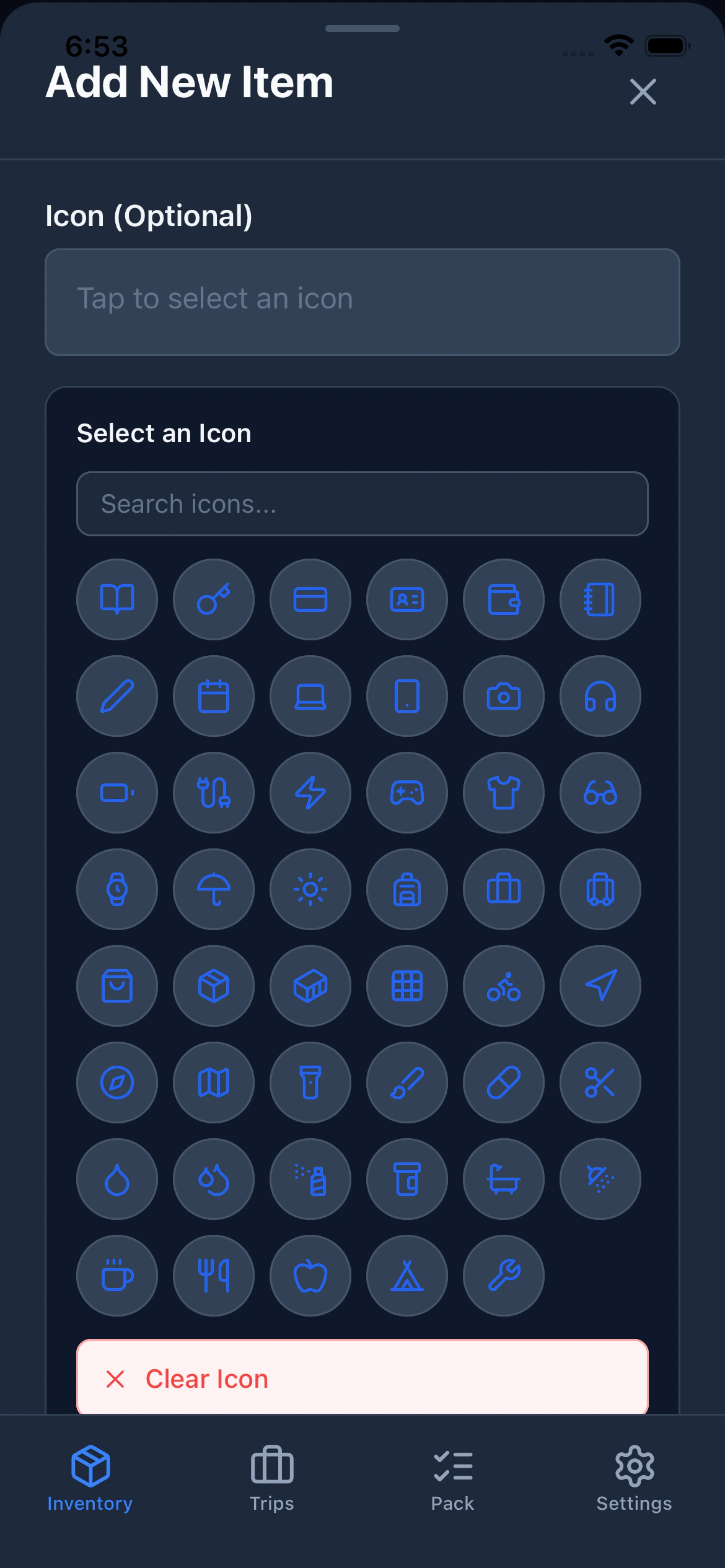
Each item can have an icon to make it easy to recognize at a glance.
1. Tap the **icon button** when creating or editing an item.
2. Browse icons organized by category.
3. Use the **search bar** to find an icon by name (e.g., search "shirt" or "laptop").
4. Tap an icon to select it.
***
## Categories
Categories group items in your inventory list. PackKit includes 13 built-in categories:
Clothing, Electronics, Toiletries, Documents, Accessories, Packing Container, Medication, Financial, Outerwear, Laundry, Jewelry, Work, and Other.
**Packing Container** is a special category. Items in this category can act as containers in your trips: suitcases, backpacks, packing cubes, or any bag within a bag. See [Containers](/trips-and-templates#containers) for details.
***
## Choosing an Icon
Each item can have an icon to make it easy to recognize at a glance.
1. Tap the **icon button** when creating or editing an item.
2. Browse icons organized by category.
3. Use the **search bar** to find an icon by name (e.g., search "shirt" or "laptop").
4. Tap an icon to select it.
 ***
## The Liquid Flag
Toggle **Liquid** on any item subject to TSA liquid rules or shipping restrictions. This flag is informational and appears as a visual indicator on the item in your packing list.
Common examples: shampoo, contact solution, sunscreen, perfume.
***
## Editing an Item
Tap the **pencil icon** on the right side of any item to open the edit modal. Change any field and tap **Update**. Changes apply to the item everywhere it has been added to trips.
***
## Deleting an Item
Tap the **red trash icon** on the right side of any item to remove it permanently.
Deleting an item from your inventory also removes it from any trips it was added to. If you only want to remove it from a specific trip, open that trip and remove it there instead.
***
## Filtering
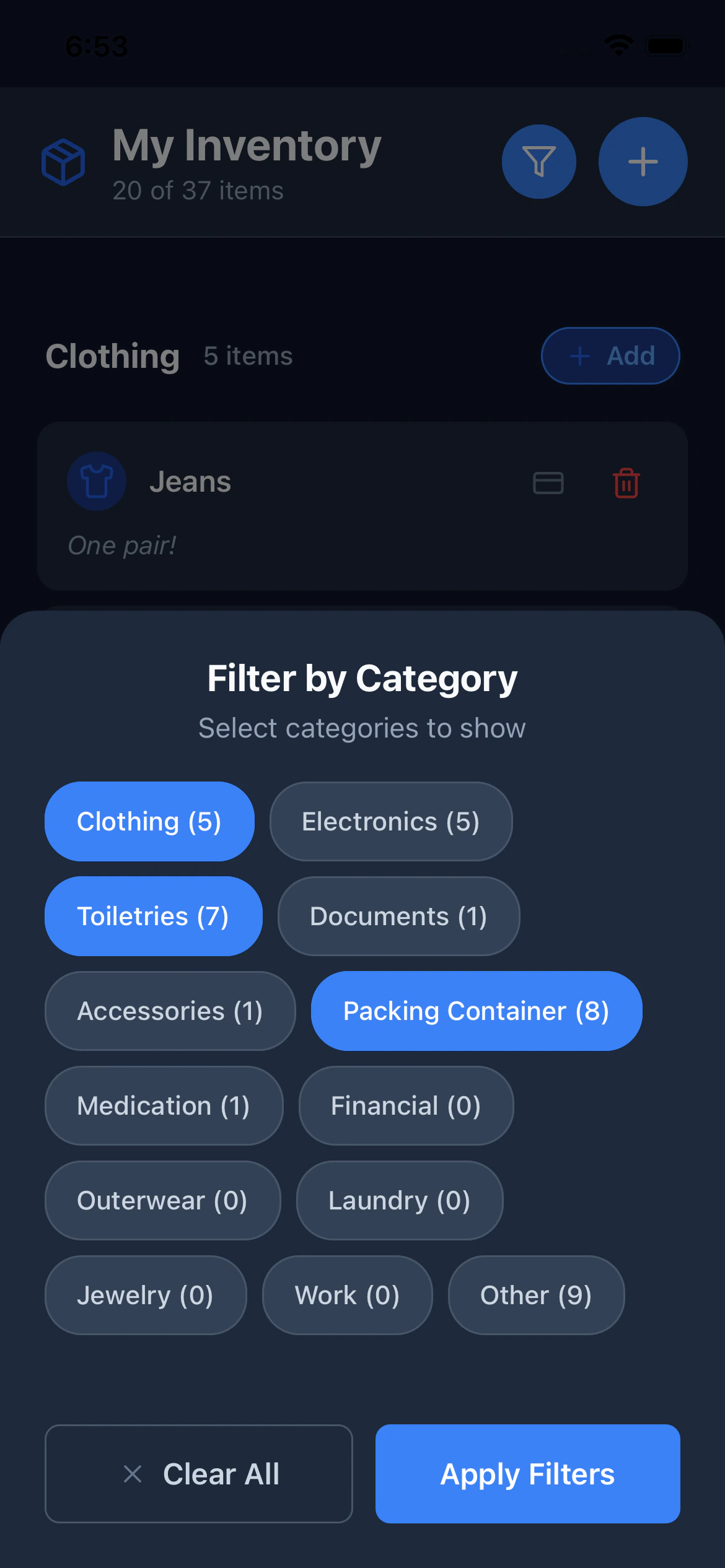
Tap the **Filter** button at the top of the Inventory tab to open the filter modal. You can select one or more categories. The list updates to show matching items and a count ("5 of 25 items"). Tap **Clear All** to reset filters.
The filter button shows an active indicator when any filter is applied.
***
## The Liquid Flag
Toggle **Liquid** on any item subject to TSA liquid rules or shipping restrictions. This flag is informational and appears as a visual indicator on the item in your packing list.
Common examples: shampoo, contact solution, sunscreen, perfume.
***
## Editing an Item
Tap the **pencil icon** on the right side of any item to open the edit modal. Change any field and tap **Update**. Changes apply to the item everywhere it has been added to trips.
***
## Deleting an Item
Tap the **red trash icon** on the right side of any item to remove it permanently.
Deleting an item from your inventory also removes it from any trips it was added to. If you only want to remove it from a specific trip, open that trip and remove it there instead.
***
## Filtering
Tap the **Filter** button at the top of the Inventory tab to open the filter modal. You can select one or more categories. The list updates to show matching items and a count ("5 of 25 items"). Tap **Clear All** to reset filters.
The filter button shows an active indicator when any filter is applied.