> ## Documentation Index
> Fetch the complete documentation index at: https://winglessenterprises.mintlify.site/llms.txt
> Use this file to discover all available pages before exploring further.
# Getting Started
> Everything you need to know to start packing smarter with PackKit.
PackKit is a smart packing and inventory management app that helps you organize and track your belongings for any trip. Build a personal inventory of everything you own, create trips, and check items off as you pack.
***
## Creating Your Account
PackKit supports three ways to sign up. All methods create the same account and give you full access to the app.
### Sign In with Apple
The fastest way to get started on iPhone. PackKit will display "Completing sign in…" briefly while your account is verified.
1. Tap **Sign in with Apple** on the welcome screen.
2. Authenticate with Face ID, Touch ID, or your Apple password.
3. Choose whether to share your real email address or use Apple's private relay.
4. PackKit creates your account automatically.
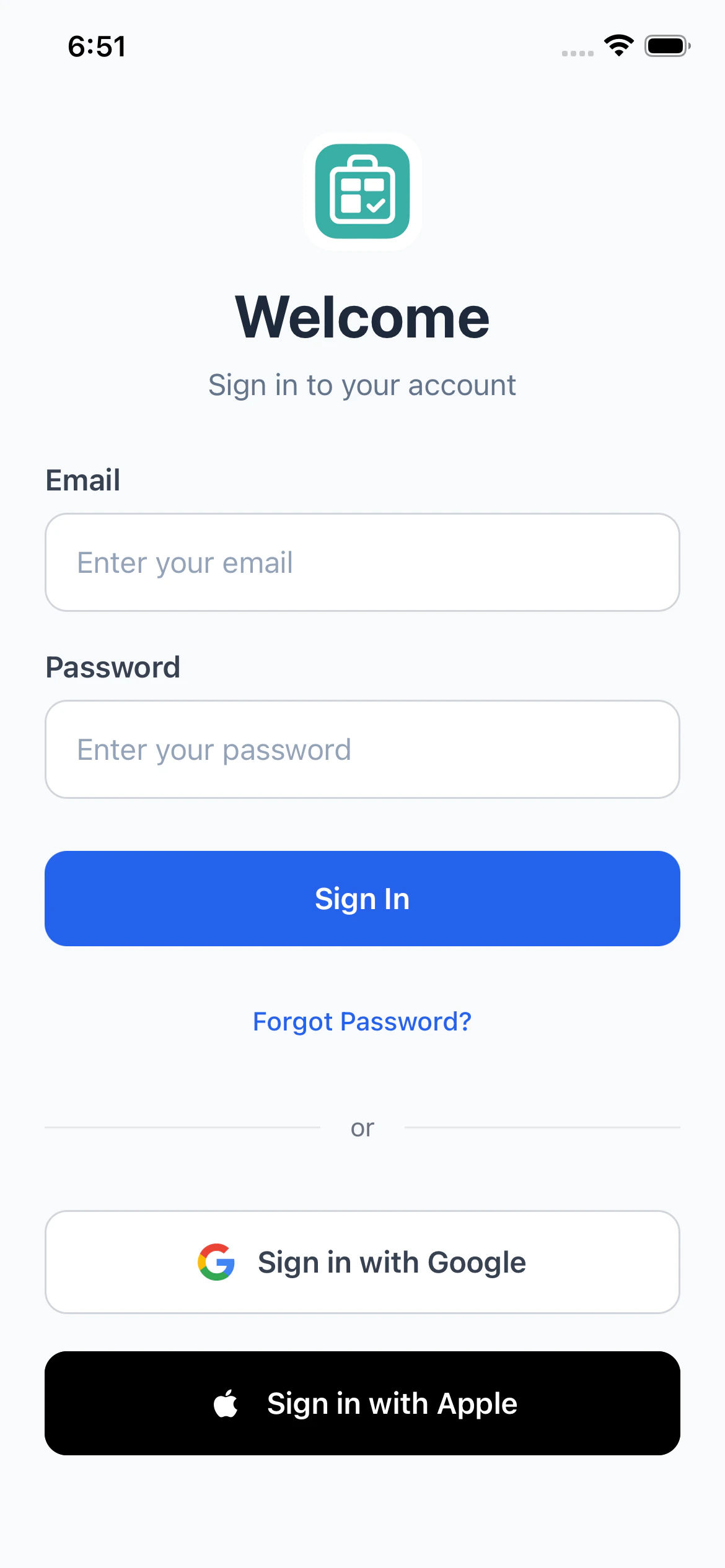 ### Sign In with Google
1. Tap **Sign in with Google** on the welcome screen.
2. A browser window opens. Choose your Google account.
3. Approve the permissions and return to the app.
### Email & Password
1. Tap **Create an account** on the welcome screen.
2. Enter your email address and choose a password (minimum 6 characters).
3. Tap **Sign Up**.
4. Check your inbox for a **6-digit confirmation code**.
5. Enter the code in the app to verify your email.
**Forgot your password?** See [Changing Your Password](/settings#changing-your-password) for the full reset flow.
***
## Your First Time In
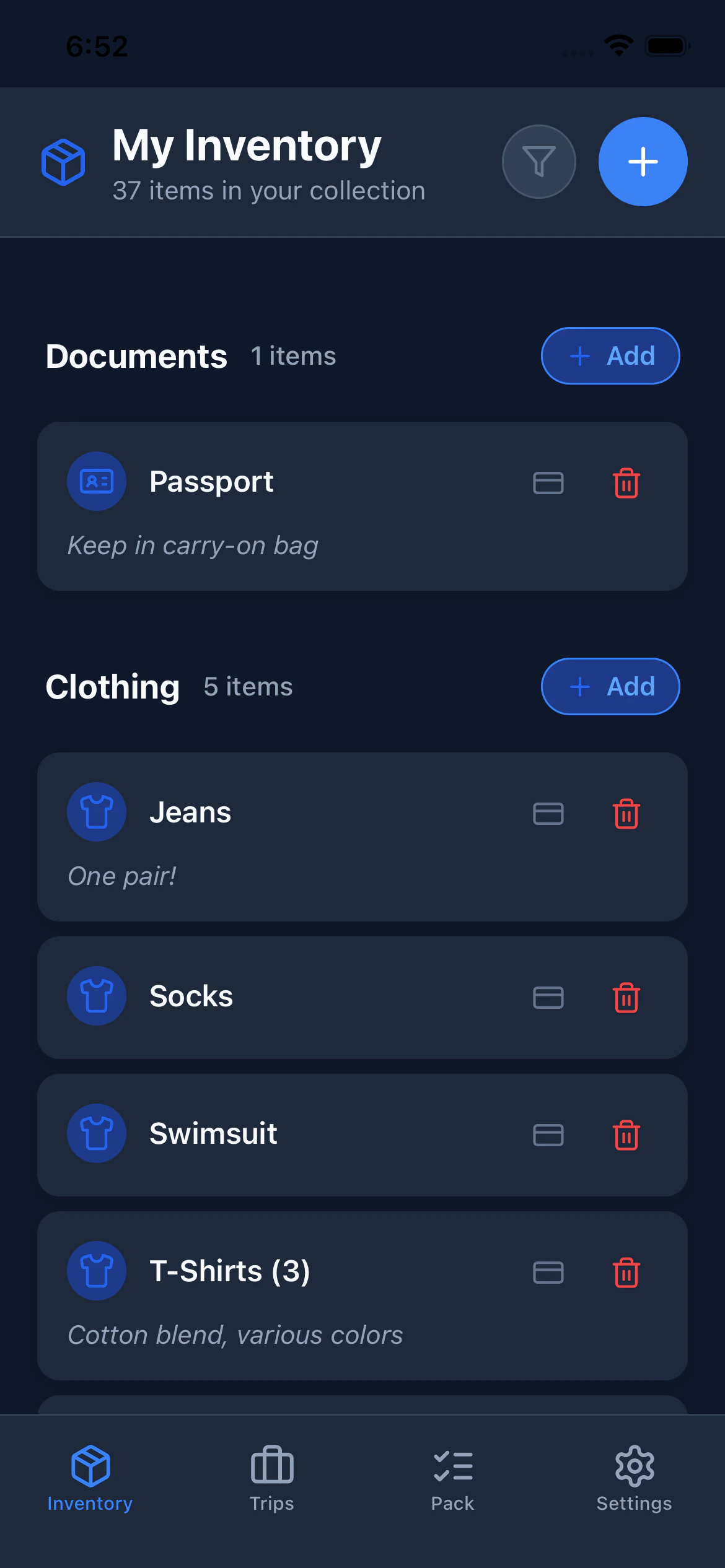
When you sign in for the first time, PackKit creates a sample trip and pre-populates your inventory with example items. This gives you a feel for how the app works before you add your own gear.
The sample trip is just for exploration. Feel free to delete it and start fresh whenever you're ready.
You'll land on the **Inventory** tab. From here you can:
* See the example items organized by category
* Tap any item to edit it
* Add your own items with the **+** button
***
## The Four Tabs
PackKit is organized into four tabs at the bottom of the screen:
| Tab | What it does |
| ------------- | --------------------------------------------- |
| **Inventory** | Manage your personal collection of items |
| **Trips** | Create and manage trips and packing templates |
| **Pack** | Active checklist view for your current trip |
| **Settings** | Dark mode, account info, and sign out |
### Sign In with Google
1. Tap **Sign in with Google** on the welcome screen.
2. A browser window opens. Choose your Google account.
3. Approve the permissions and return to the app.
### Email & Password
1. Tap **Create an account** on the welcome screen.
2. Enter your email address and choose a password (minimum 6 characters).
3. Tap **Sign Up**.
4. Check your inbox for a **6-digit confirmation code**.
5. Enter the code in the app to verify your email.
**Forgot your password?** See [Changing Your Password](/settings#changing-your-password) for the full reset flow.
***
## Your First Time In
When you sign in for the first time, PackKit creates a sample trip and pre-populates your inventory with example items. This gives you a feel for how the app works before you add your own gear.
The sample trip is just for exploration. Feel free to delete it and start fresh whenever you're ready.
You'll land on the **Inventory** tab. From here you can:
* See the example items organized by category
* Tap any item to edit it
* Add your own items with the **+** button
***
## The Four Tabs
PackKit is organized into four tabs at the bottom of the screen:
| Tab | What it does |
| ------------- | --------------------------------------------- |
| **Inventory** | Manage your personal collection of items |
| **Trips** | Create and manage trips and packing templates |
| **Pack** | Active checklist view for your current trip |
| **Settings** | Dark mode, account info, and sign out |
 ***
## Basic Workflow
1. **Build your inventory.** Add the items you own once.
2. **Create a trip.** Set a destination, dates, and number of travelers.
3. **Add items to the trip.** Pull from your inventory and organize them into containers.
4. **Pack.** Open the Pack tab and check items off as you go.
5. **Save as template.** If it was a great list, save it for next time.
***
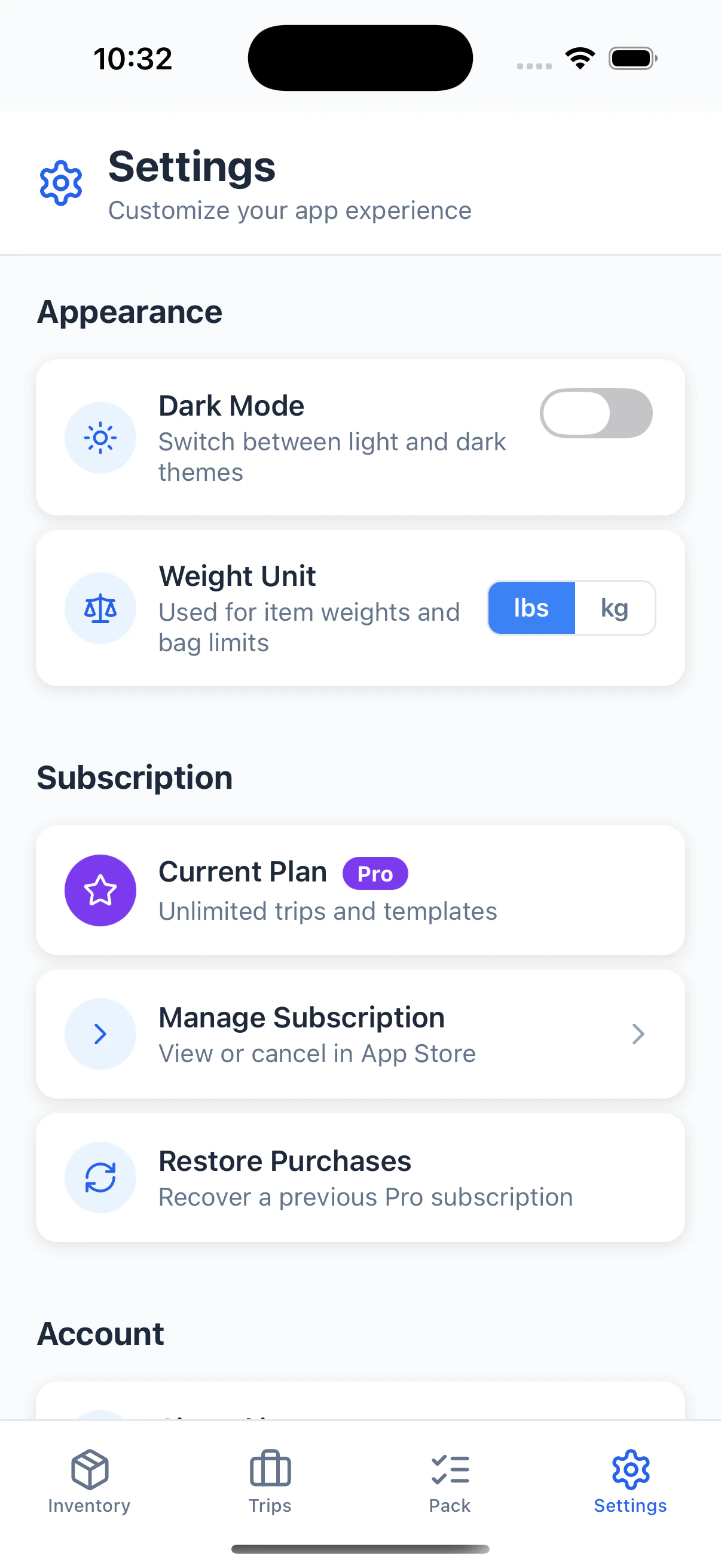
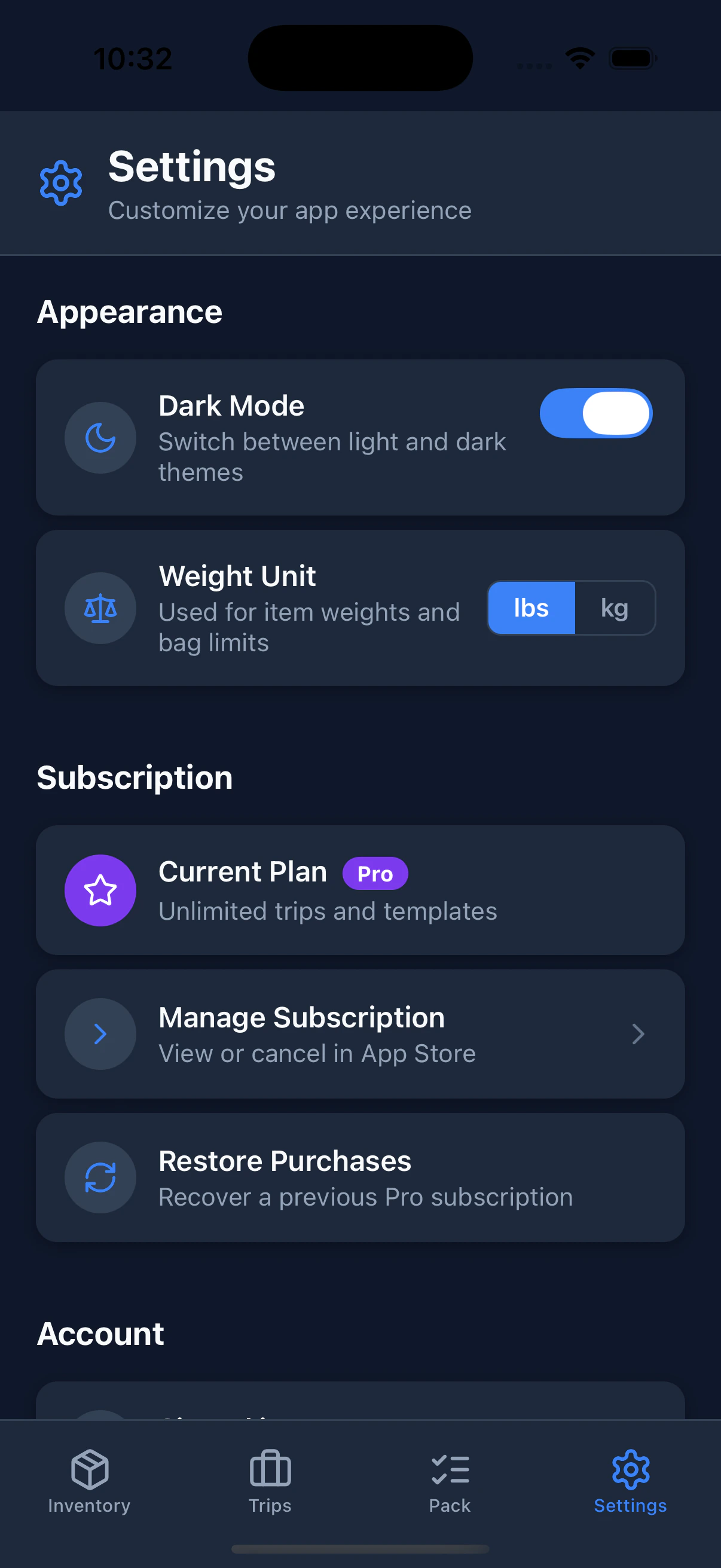
## Dark Mode
PackKit supports dark mode. Toggle it any time in the **Settings** tab. Your preference is saved to your account and persists across devices.
***
## Basic Workflow
1. **Build your inventory.** Add the items you own once.
2. **Create a trip.** Set a destination, dates, and number of travelers.
3. **Add items to the trip.** Pull from your inventory and organize them into containers.
4. **Pack.** Open the Pack tab and check items off as you go.
5. **Save as template.** If it was a great list, save it for next time.
***
## Dark Mode
PackKit supports dark mode. Toggle it any time in the **Settings** tab. Your preference is saved to your account and persists across devices.